
-
Created by
 C Layman, last updated on Jan 19, 2026
3 minute read
C Layman, last updated on Jan 19, 2026
3 minute read
This guide is for reconnecting to Eduroam when password has been updated/changed or issues reconnecting when moving between buildings.
Step-by-step guide
- Go to Wifi Preferences
Select the 3 dots next to Eduroam and select Forget this Network
- On the next window click Forget

You will need to be connected to another WiFi or RegisterMe
Select the link to go to the site: https://cat.eduroam.org
Now select the link that says Click here to download your eduroam installer.

- Search and select for Stellenbosch University

- Allow the download
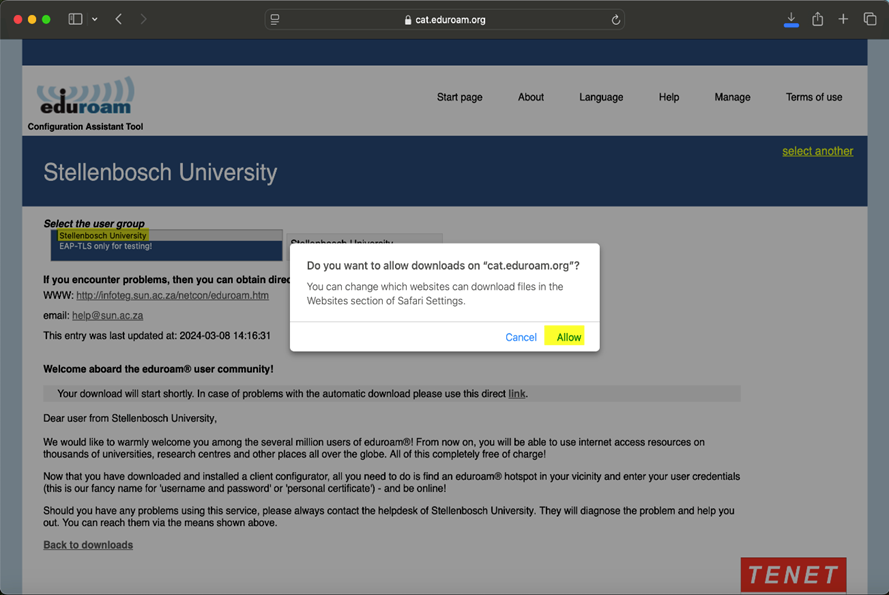
- Select OK to confirm the download

- Go to Preferences and search for Profile

Select Profile Eduroam, profile will be under Device Management, Double click file
- Select Install and Continue to proceed with the installation


- Enter your SU email and password
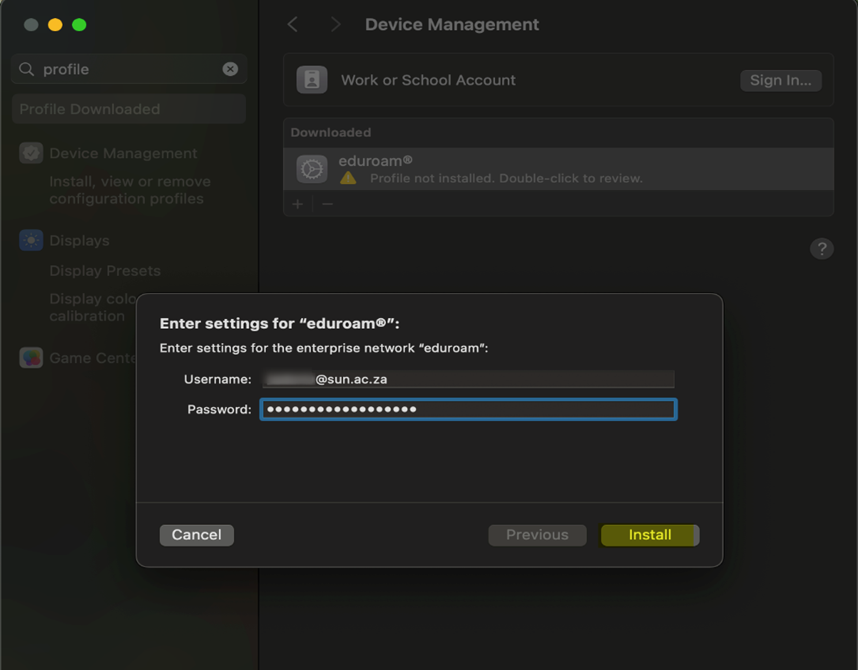
- Click Install

- Enter your device password

- Go to Preferences > WiFi > click Connect next to Eduroam

You should now be connected
Related articles
NB* If you are experiencing issues with reconnecting:
Please try the steps below:
Step-by-step guide
Step 1 :
Eduroam is usually installed as a configuration profile.
- Open System Settings
- Go to Privacy & Security
- Scroll down and click Profiles
- Select eduroam
- Click Remove Profile
- Enter your Mac password to confirm
- Restart Wi-Fi (or reboot to be safe)
This removes the certificate, Wi-Fi config, and authentication settings.
If the problem persists: Try step 2
Step 2 :
Do this only if eduroam still causes issues.
- Open Keychain Access
- Select System and login keychains
- In Category, choose Certificates
- Search for:
- eduroam
- your university name
- EAP or Radius
- Right-click the relevant certificate → Delete
- Enter your Mac password