-
Created by
 Unknown User (rylands), last updated by C Layman on Feb 25, 2026
3 minute read
Unknown User (rylands), last updated by C Layman on Feb 25, 2026
3 minute read
Step by step guide to activate Microsoft Office365.
Step-by-step guide
- Log in to http://portal.office.com in your Browser:

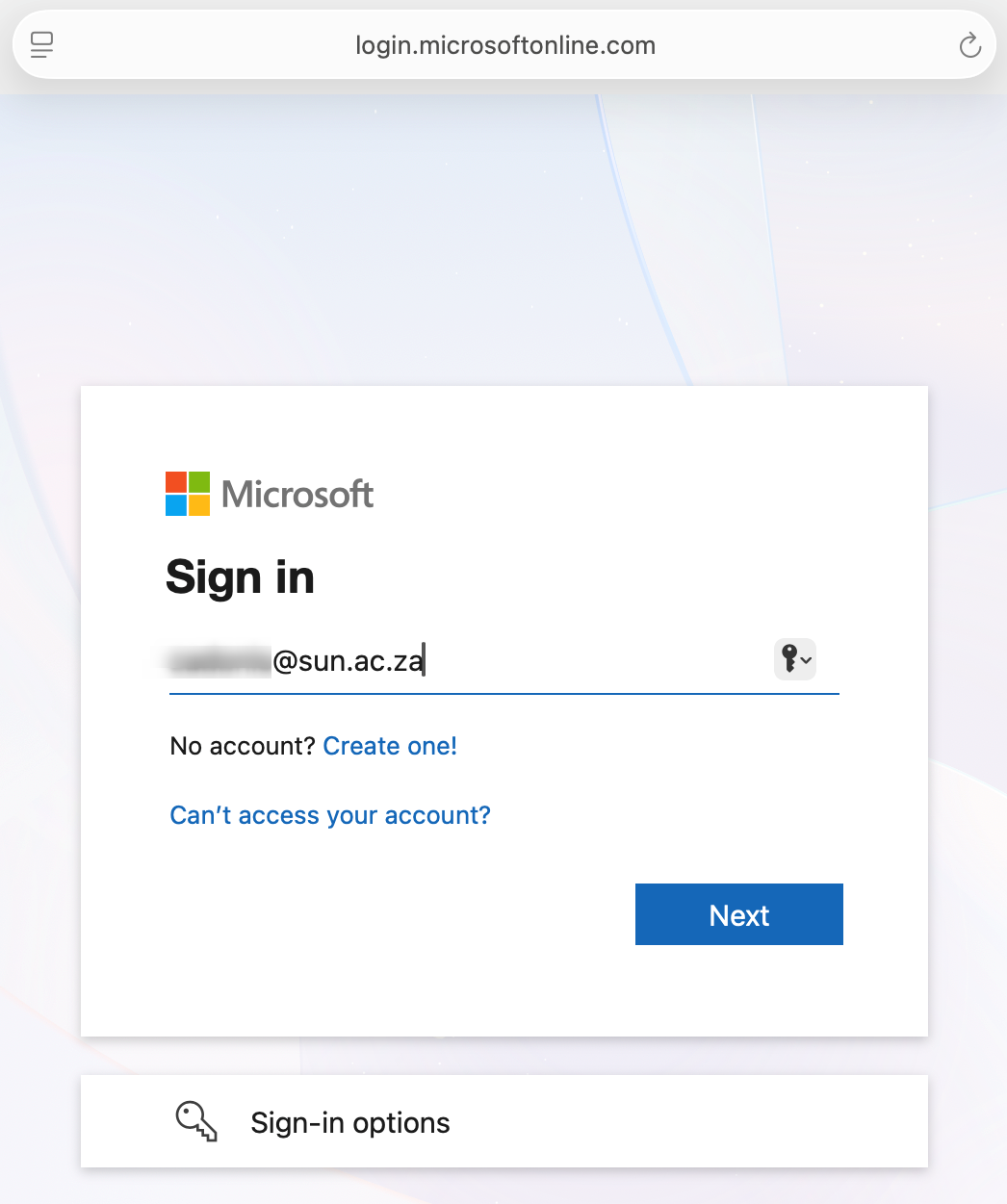
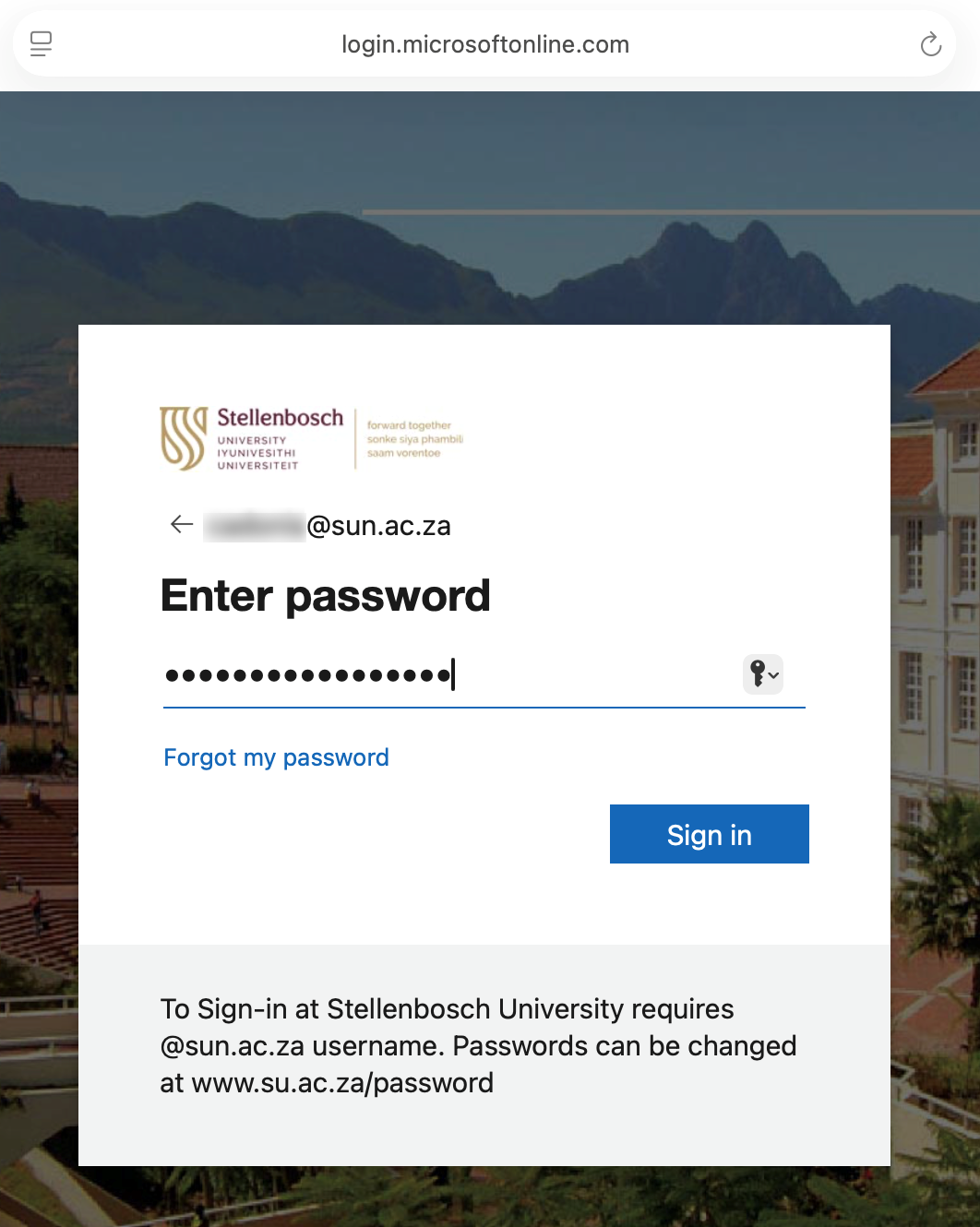
- Enter your username username@sun.ac.za and enter your Password.
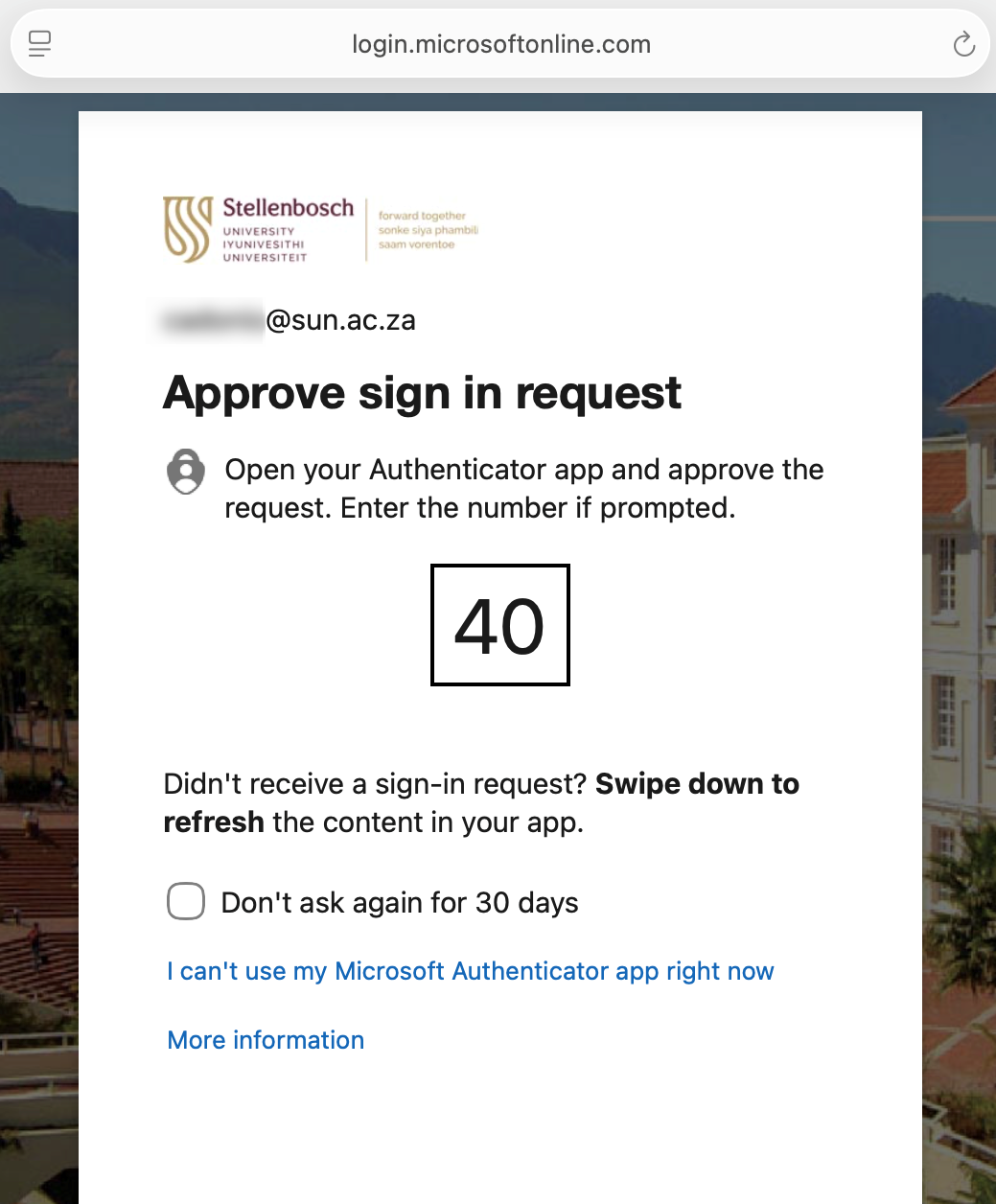
- Approve to Authenticate then select whether to stay signed in.
- Once signed in, select Apps on the left side column and then Install apps top right, followed by selecting Microsoft 365 apps.
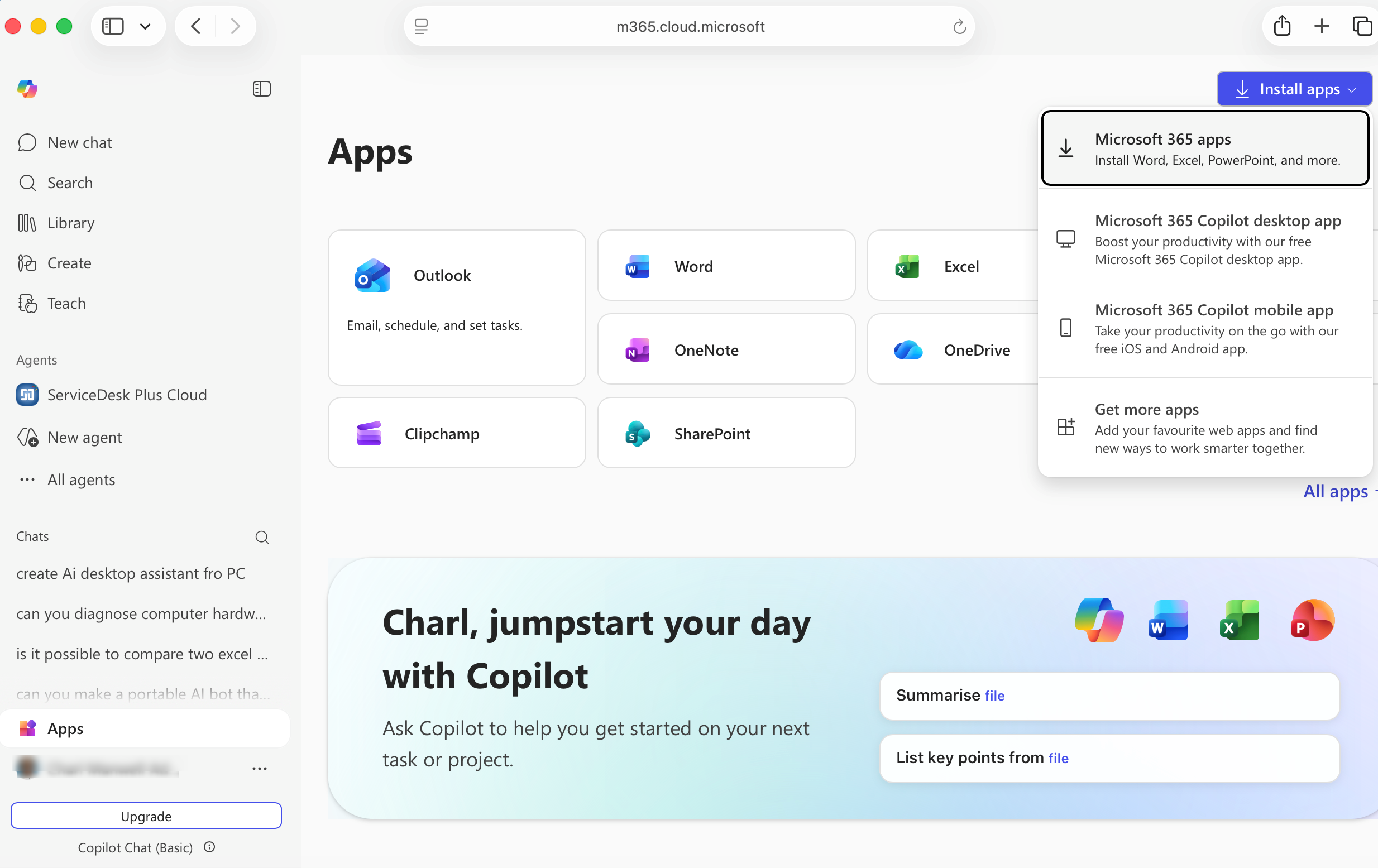
- Select Install Office to proceed.

- Select Allow to begin downloading Office.
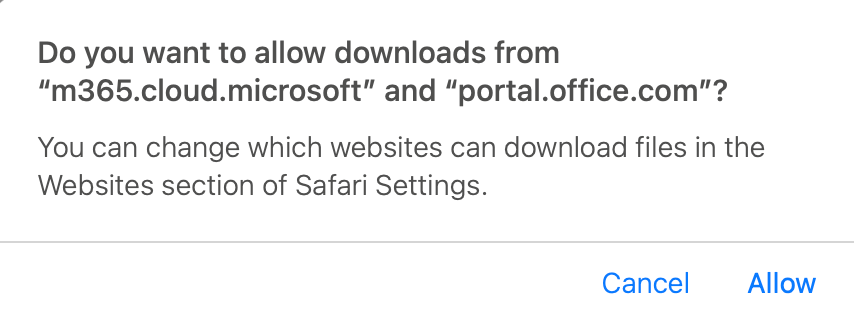

- Select Continue for both Introduction and License Agreement prompts.
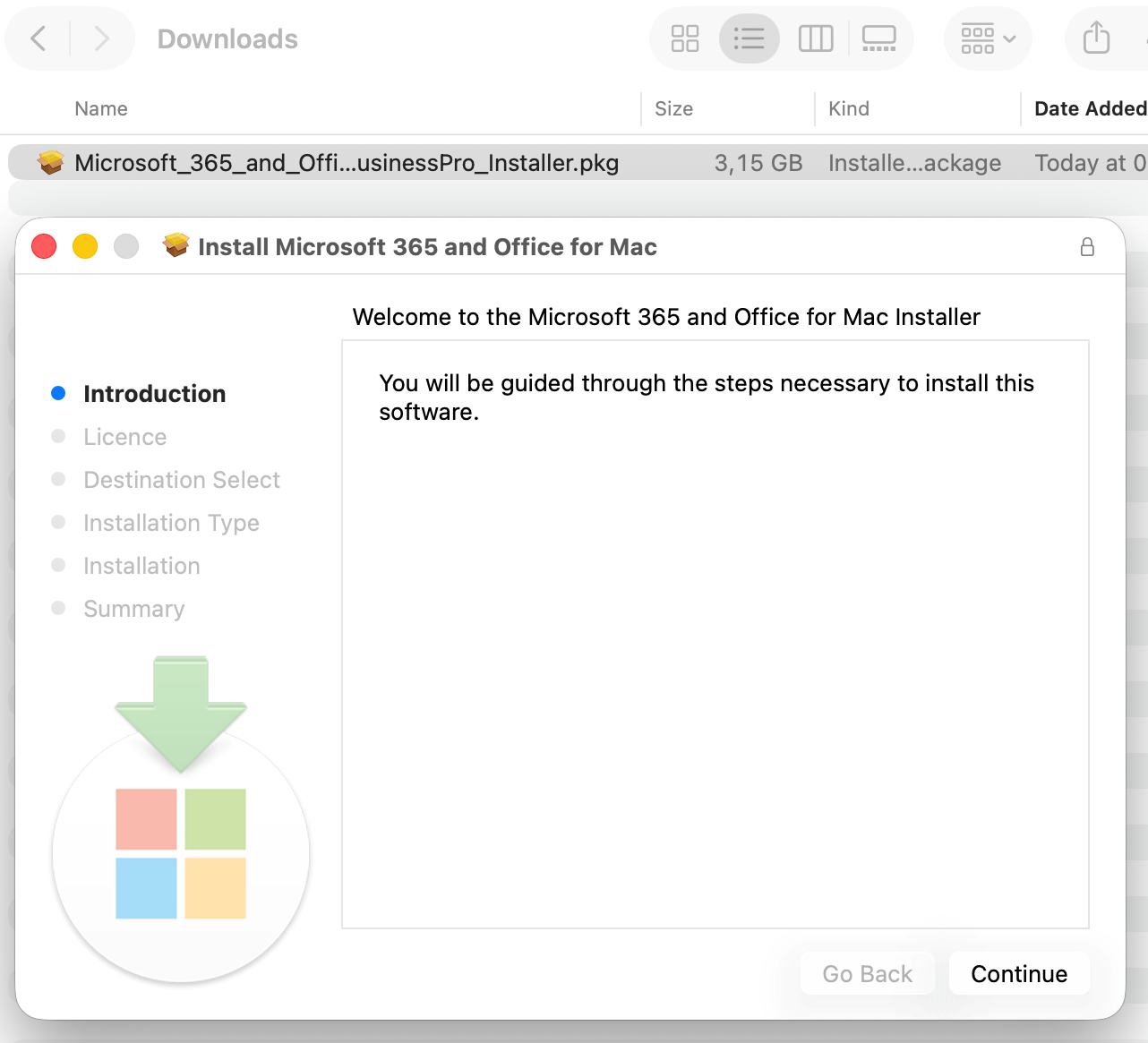
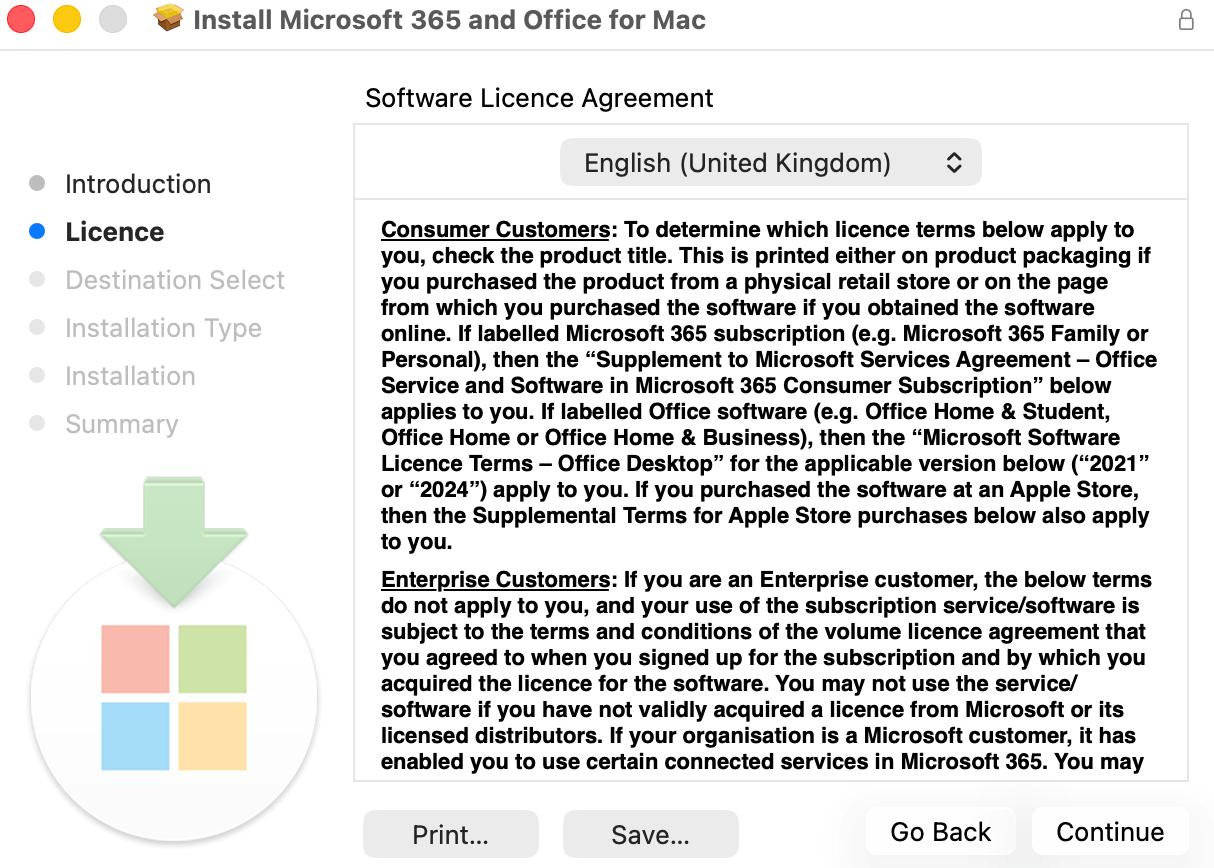
- Select Agree to proceed and then Continue to begin install.
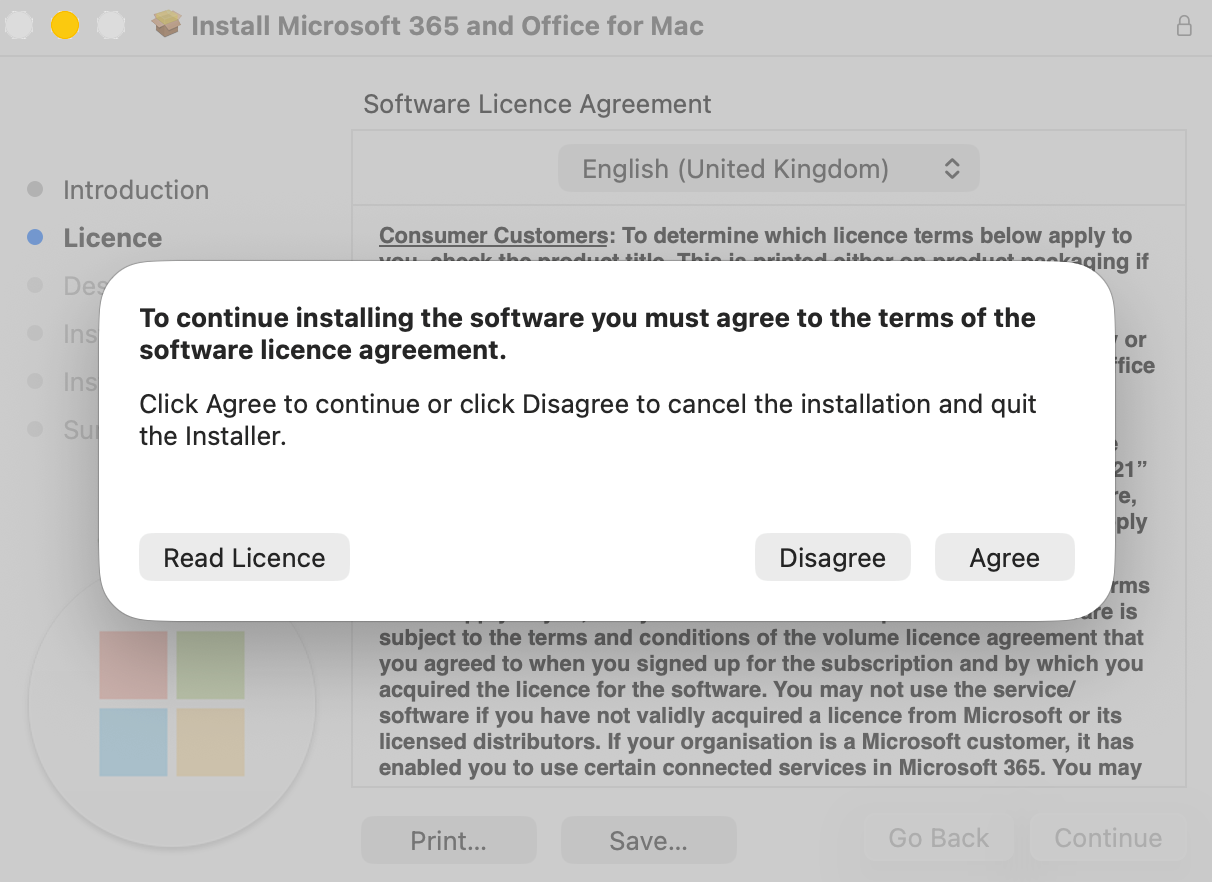

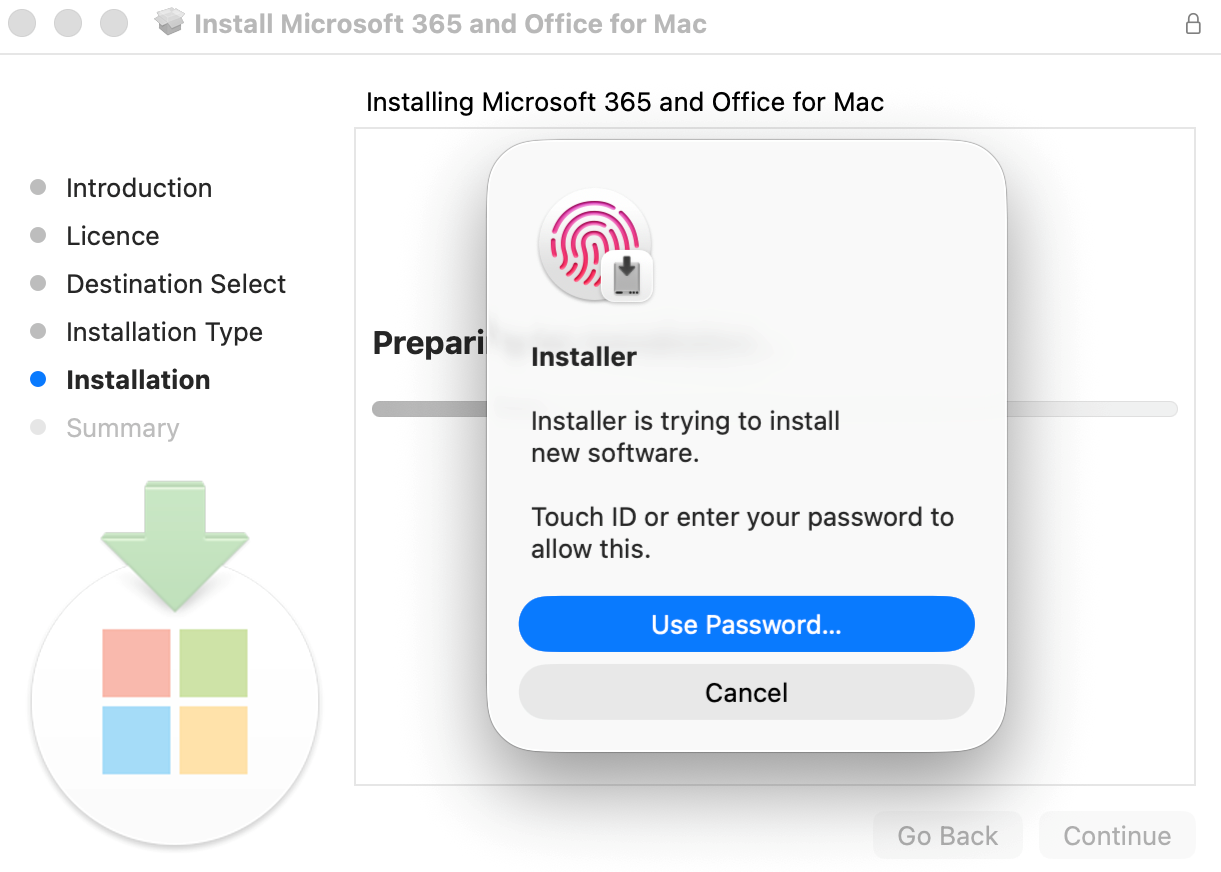
- Select Install, then allow installation to start by approving it with you Mac Password.

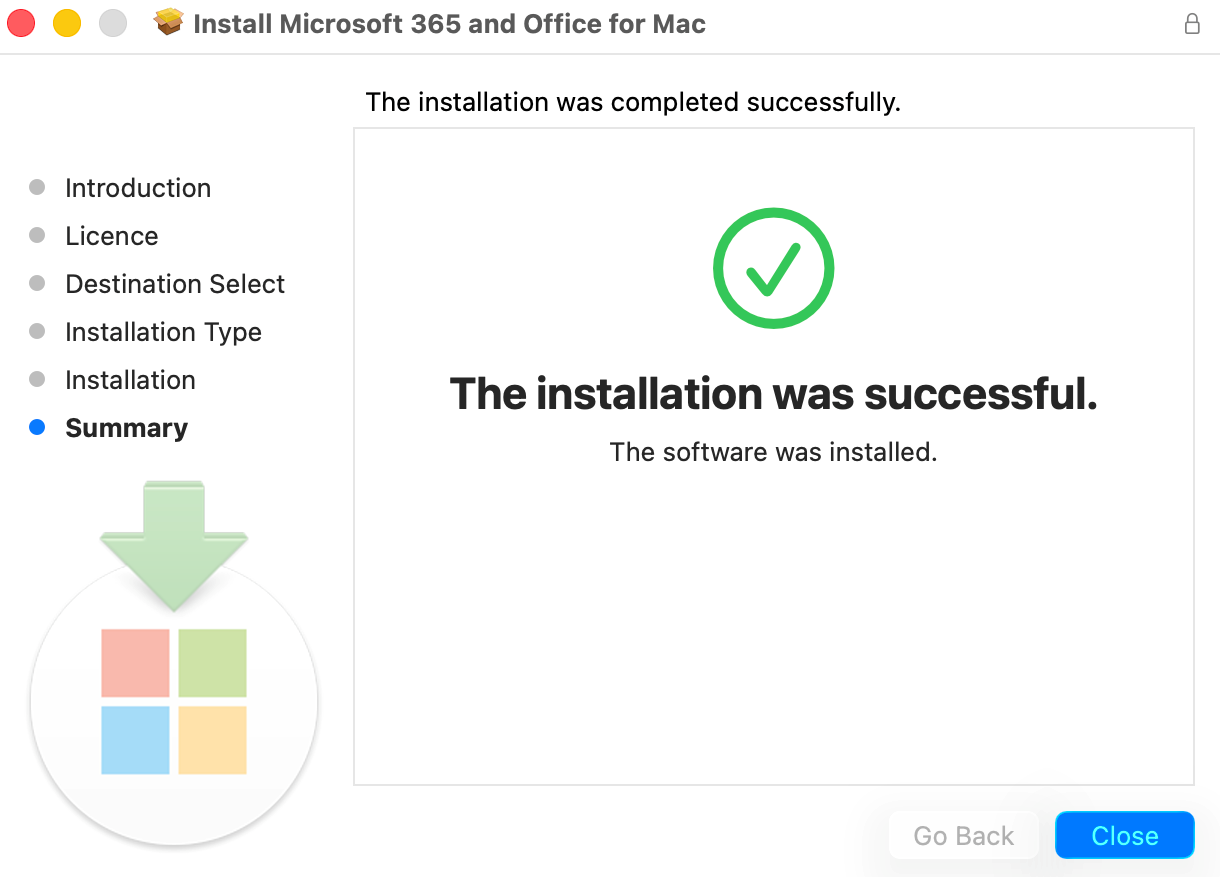
- Office installation is now completed. Select Close to complete.
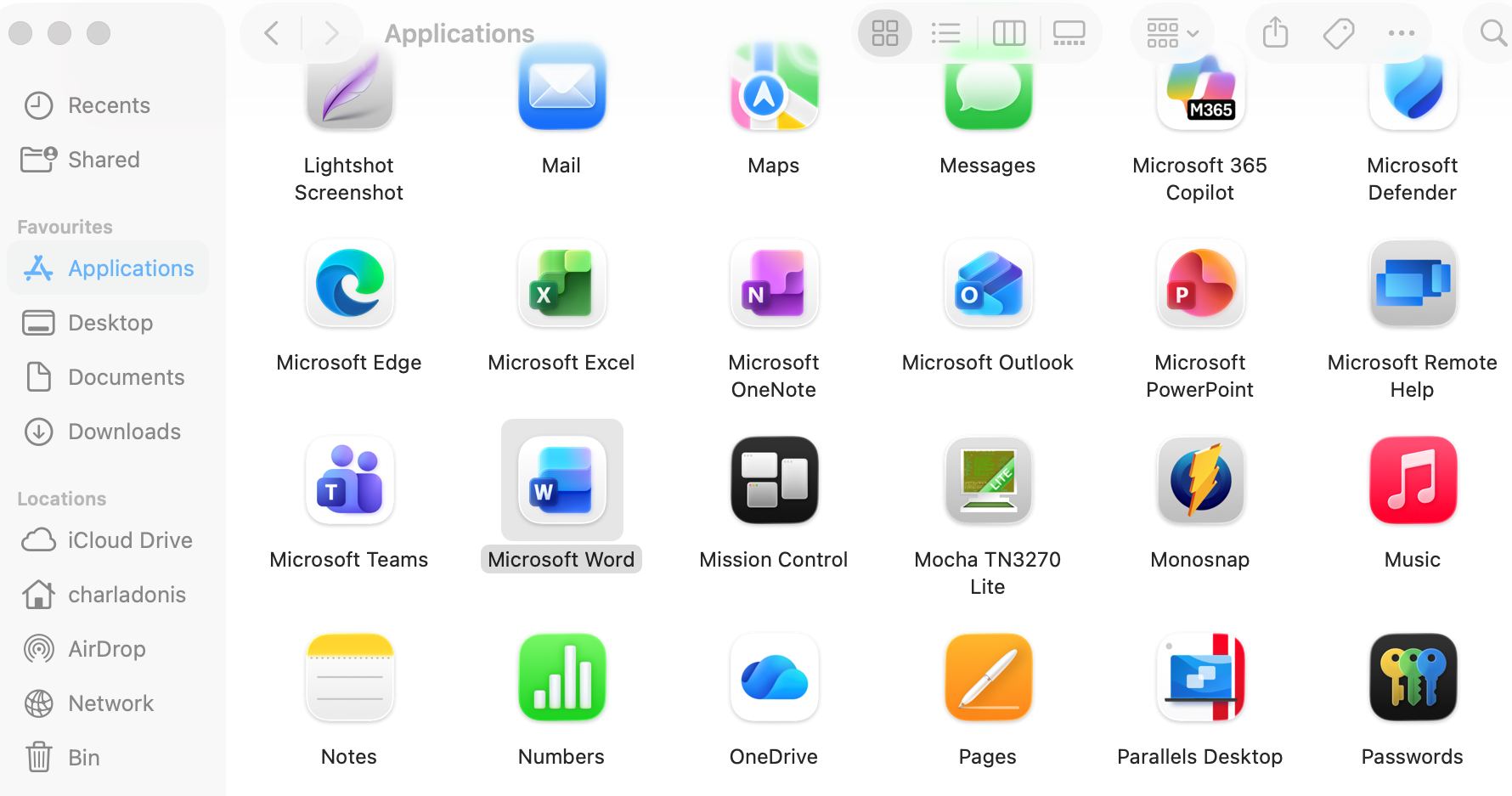
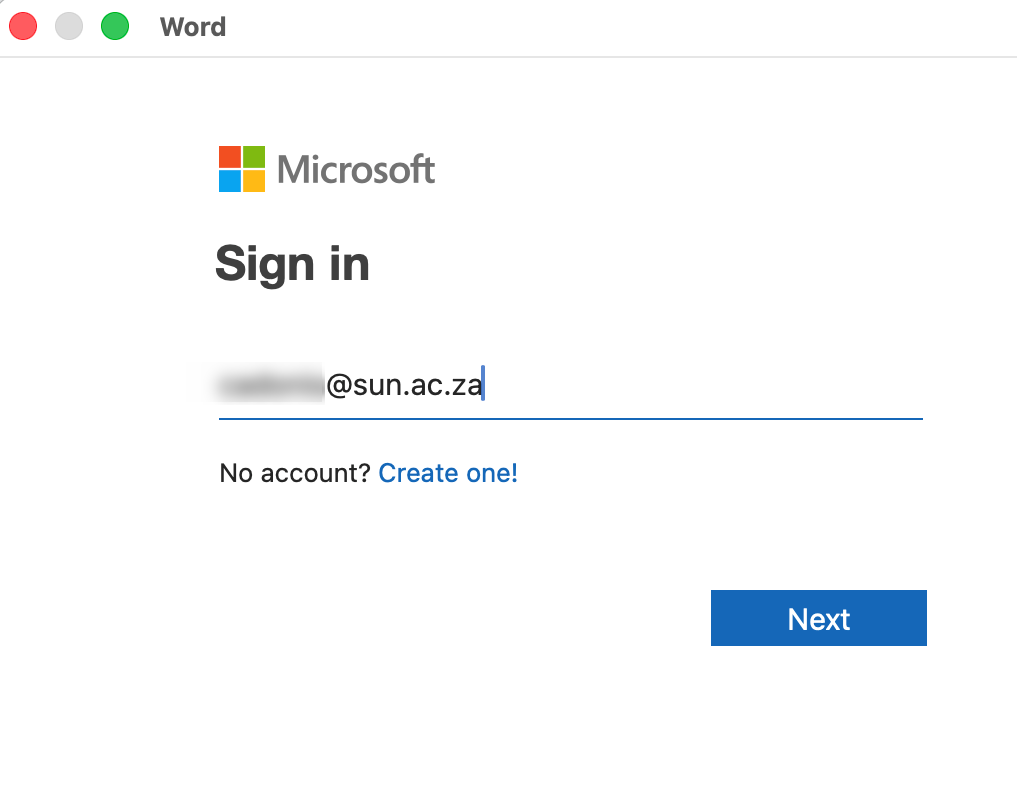
- To Activate Office, go to Applications and select Word.
- Type username@sun.ac.za and enter your Password.
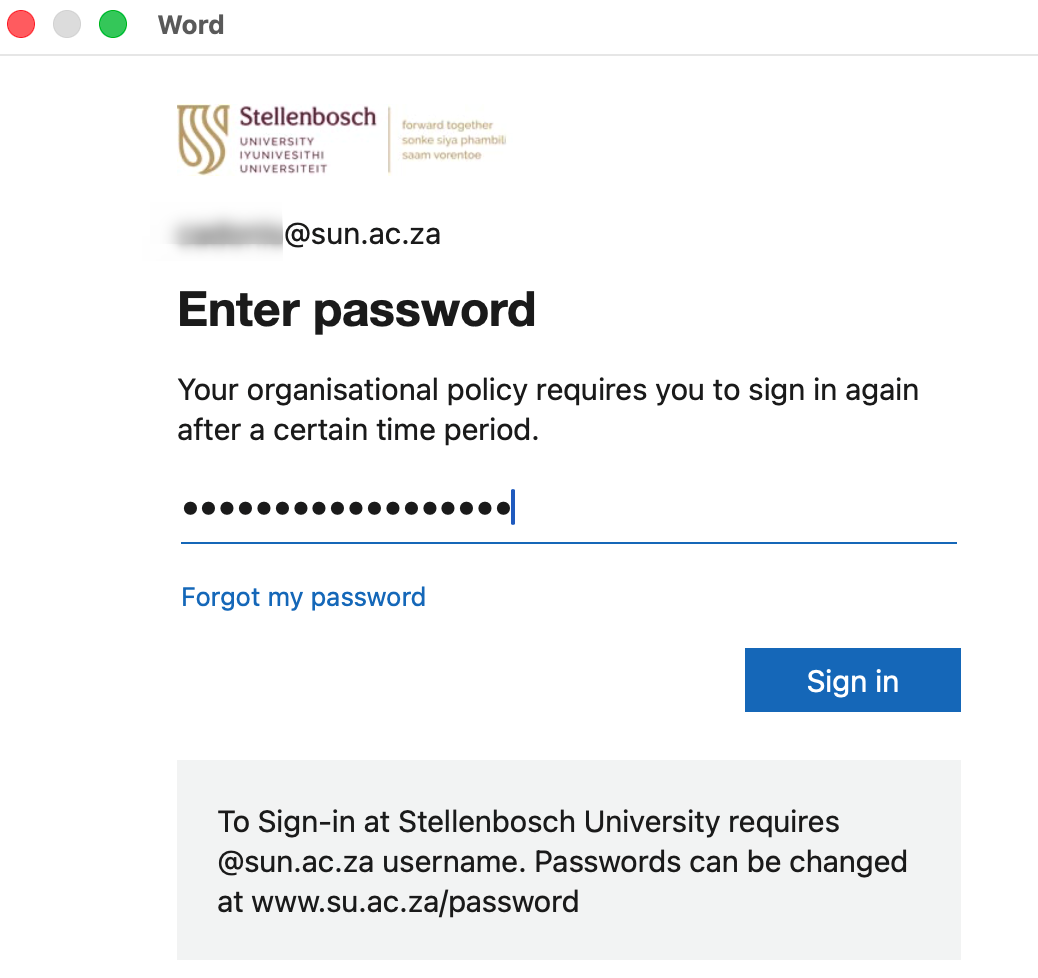
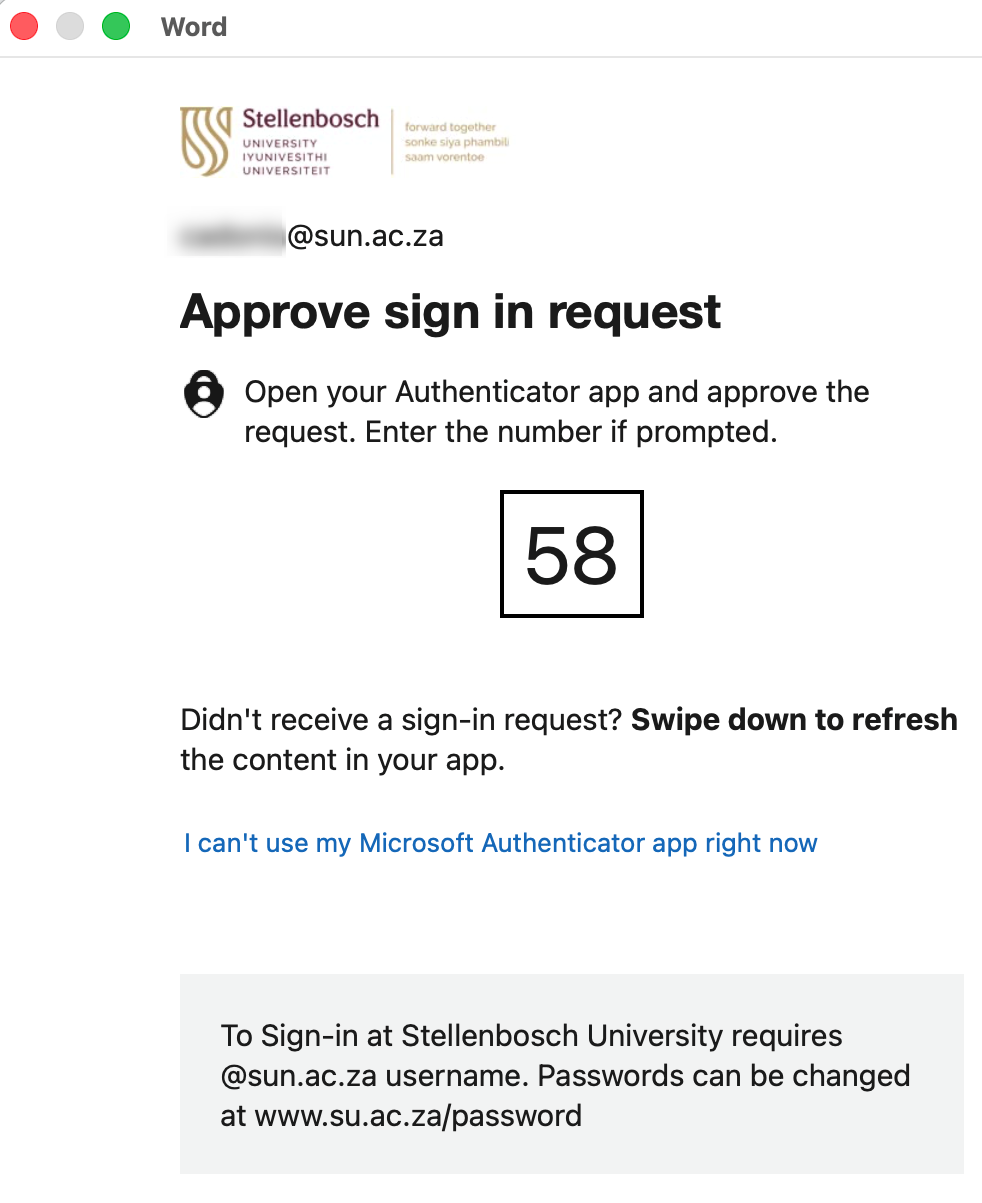
- Approve the Authentication to complete the sign in. Office is now Activated.