
This guide shows you how to connect to Remote Desktop Services (RDS) from a Mac. Once you've set it up, you can open your remote Windows desktop and applications from your Mac, wherever you are.
You'll use Windows App, Microsoft's free app for connecting to remote Windows desktops and apps. Windows App replaced the older Microsoft Remote Desktop app.
Setup takes about 10 minutes and you only need to do it once on each Mac.
Requirements
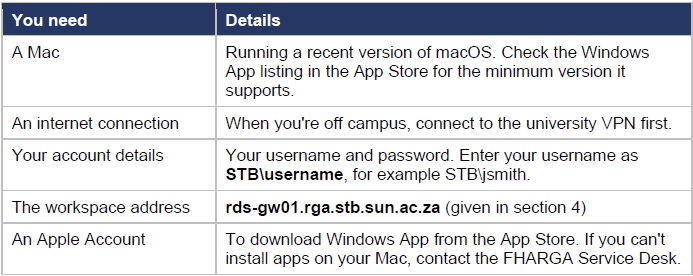
Step-by-step guide
Install the Windows app:
- On your Mac, open the App Store.
- Search for Windows App. Make sure the publisher is Microsoft Corporation.
- Click Get, then Install. Enter your Apple Account password if asked.
- When the download is finished, open Windows App from your Applications folder or from Launchpad.
- The first time it opens, you may see a welcome screen or be asked to help improve the app. Choose your preference and continue.
NB* If you already have Microsoft Remote Desktop on your Mac, it is updated to Windows App automatically through the App Store. Your existing connections are kept.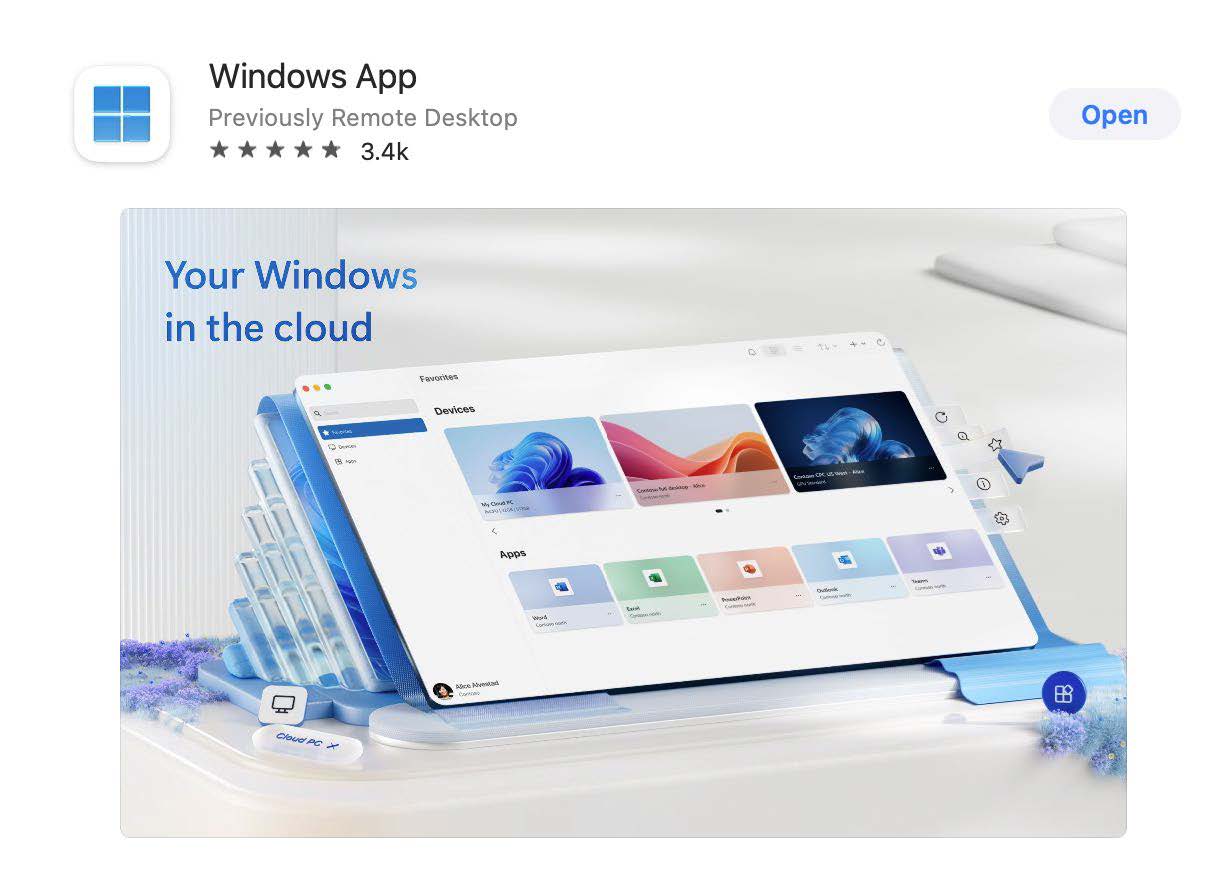
Add the workspace
- Open Windows App.
- Click the + (plus) button in the toolbar, then choose Add Workspace.
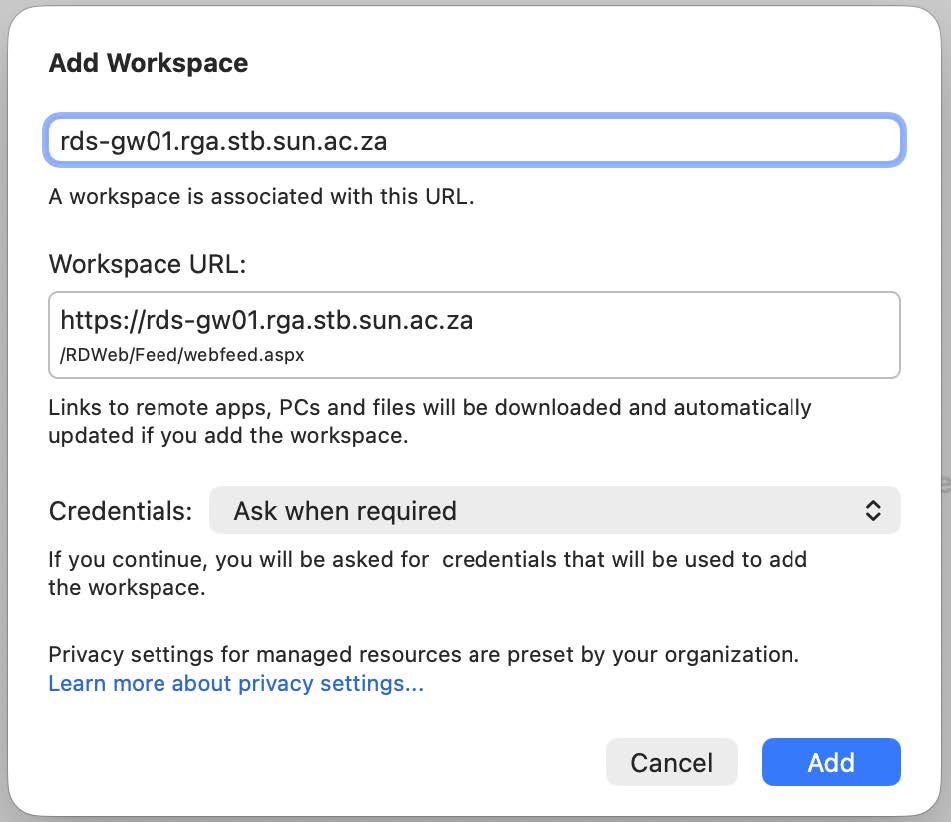
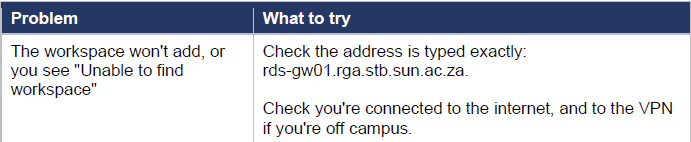
- In the box at the top, type: rds-gw01.rga.stb.sun.ac.za
- Wait a moment. When you see A workspace is associated with this URL, Windows App has found the workspace and fills in the full Workspace URL for you.
- Leave Credentials set to Ask when required.
- Click Add.
- When asked, enter your username as STB\username and your password, then continue.
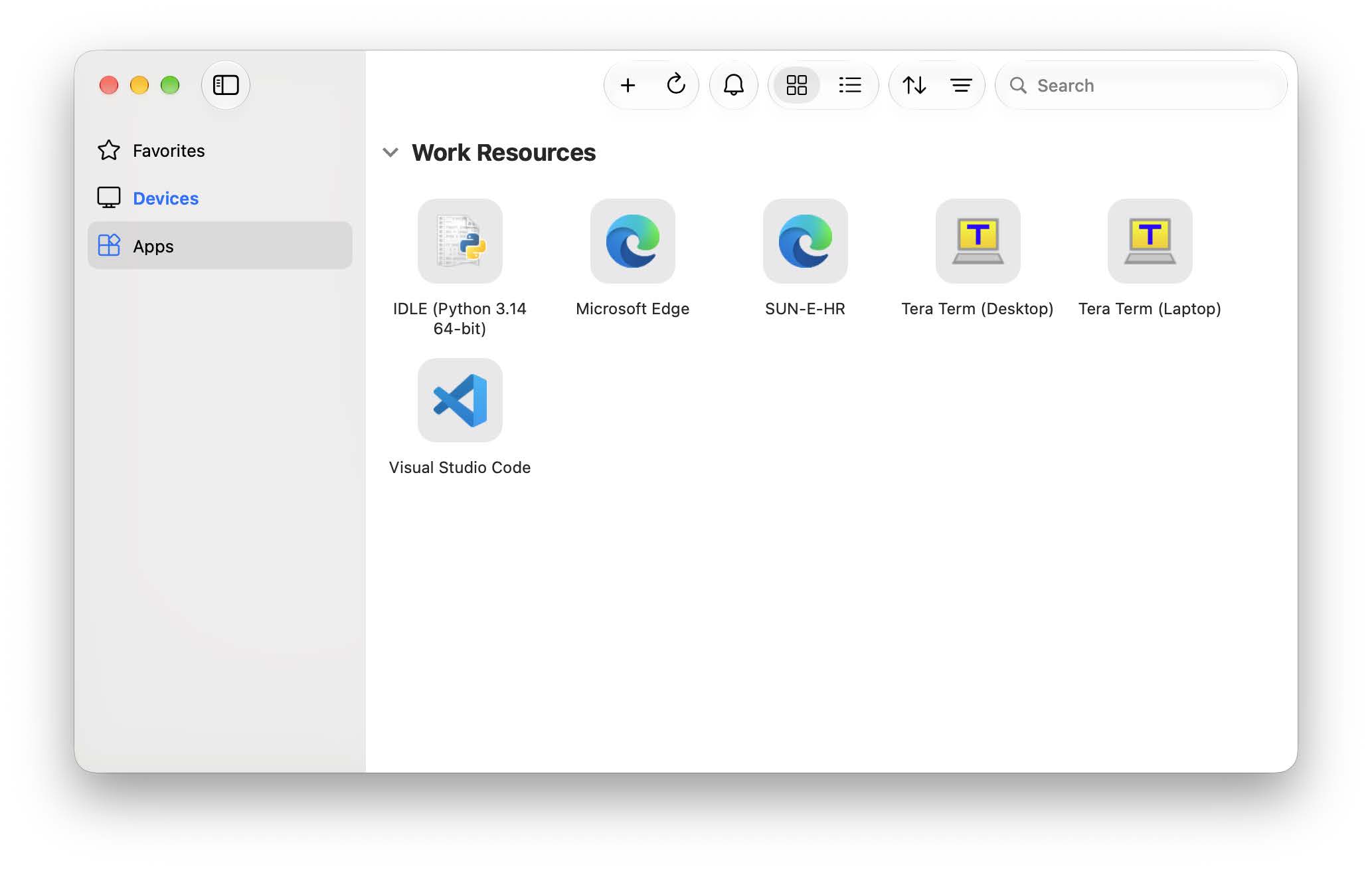
Windows App now downloads your workspace. After a few seconds, your remote desktops and apps appear in the app, grouped under Work Resources.
NB* Type the address exactly as shown. If you don't see A workspace is associated with this URL, check for typing mistakes. This is the most common reason a workspace doesn't load.
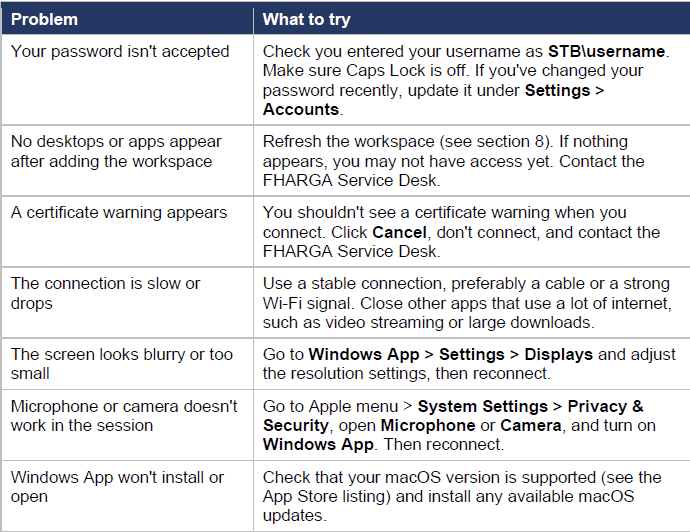
TIP** If you change your password later, update it in Windows App too. Go to Windows App > Settings > Accounts, select your account, and click Edit.
Connect to a remote desktop or app
- In Windows App, click Devices or Apps in the sidebar. Desktops are listed under Devices and programs under Apps, grouped under Work Resources.
- Double-click it to connect.
- If asked, enter your password again.
- Your remote desktop or app opens in a new window.
NOTE*** The first time you use features like your microphone or camera in a remote session, macOS may ask you to allow Windows App to use them. Click Allow if you need them, for example for Teams calls.
Working in your remote session
- Full Screen and Window size
- To switch between full screen and a window, use the green button at the top-left of the window, or press Control + Command + F.
- To get back to your Mac while in full screen, move your pointer to the top of the screen to show the menu bar, or swipe between desktops with three or four fingers on your trackpad.
- Using your Mac keyboard
- Windows and Mac keyboards differ slightly. In a remote session:

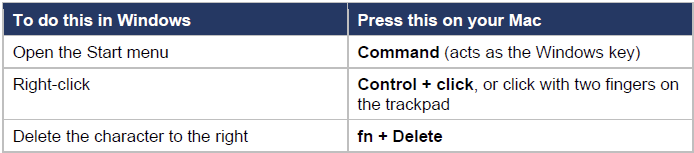
You can change how Mac shortcuts behave under Windows App > Settings > Keyboard.
- Windows and Mac keyboards differ slightly. In a remote session:
- Full Screen and Window size
Disconnect or Sign out
- There are two ways to finish working, and they do different things:
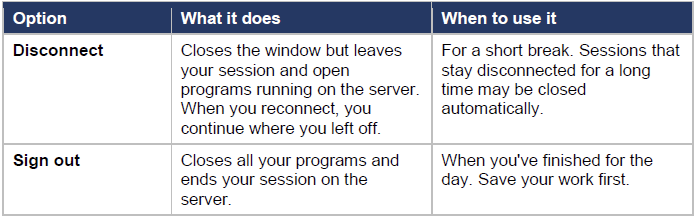
- To disconnect: close the remote session window, or choose Connections > Disconnect from the Mac menu bar.
- To sign out: in the remote desktop, open the Start menu, click your profile picture or name, and choose Sign out.
NB* Always save your work before you sign out or disconnect. Files saved only in a temporary location may be lost when your session ends.
- There are two ways to finish working, and they do different things:
Keep your workspace up to date:
Windows App checks your workspace for changes automatically. If IT tells you a new app is available and you can't see it:
Click the Refresh button (circular arrow) in the Windows App toolbar, next to the + button.
To remove the workspace, for example on a Mac you no longer use, right-click the Work Resources heading and choose Delete.
Trouble shooting:
Getting help
If you still have problems, contact the FHARGA Service Desk by clicking here
To help us solve your problem quickly, please include:
• Your username (never your password)
• Your macOS version (Apple menu > About This Mac)
• Your Windows App version (Windows App > About Windows App)
• The exact error message, or a screenshot of it
• What you were doing when the problem happened