This is a step by step guide to install Tera Term on your Windows machine
Step-by-step guide
- Open your browser and enter "www.su.ac.za/softwarehub" into the URL and enter
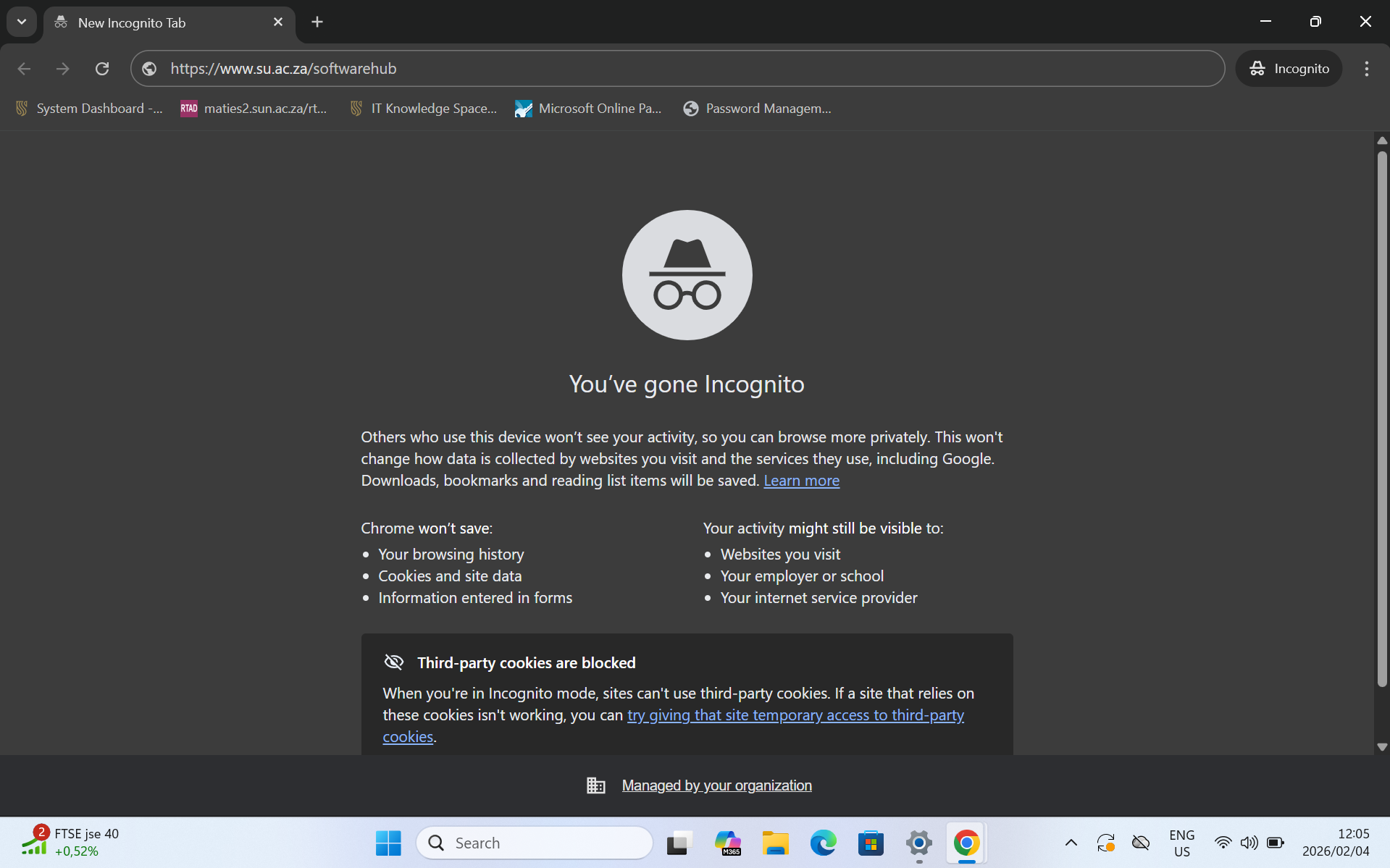
- Enter the site using your Stellenbosch University Credentials full email
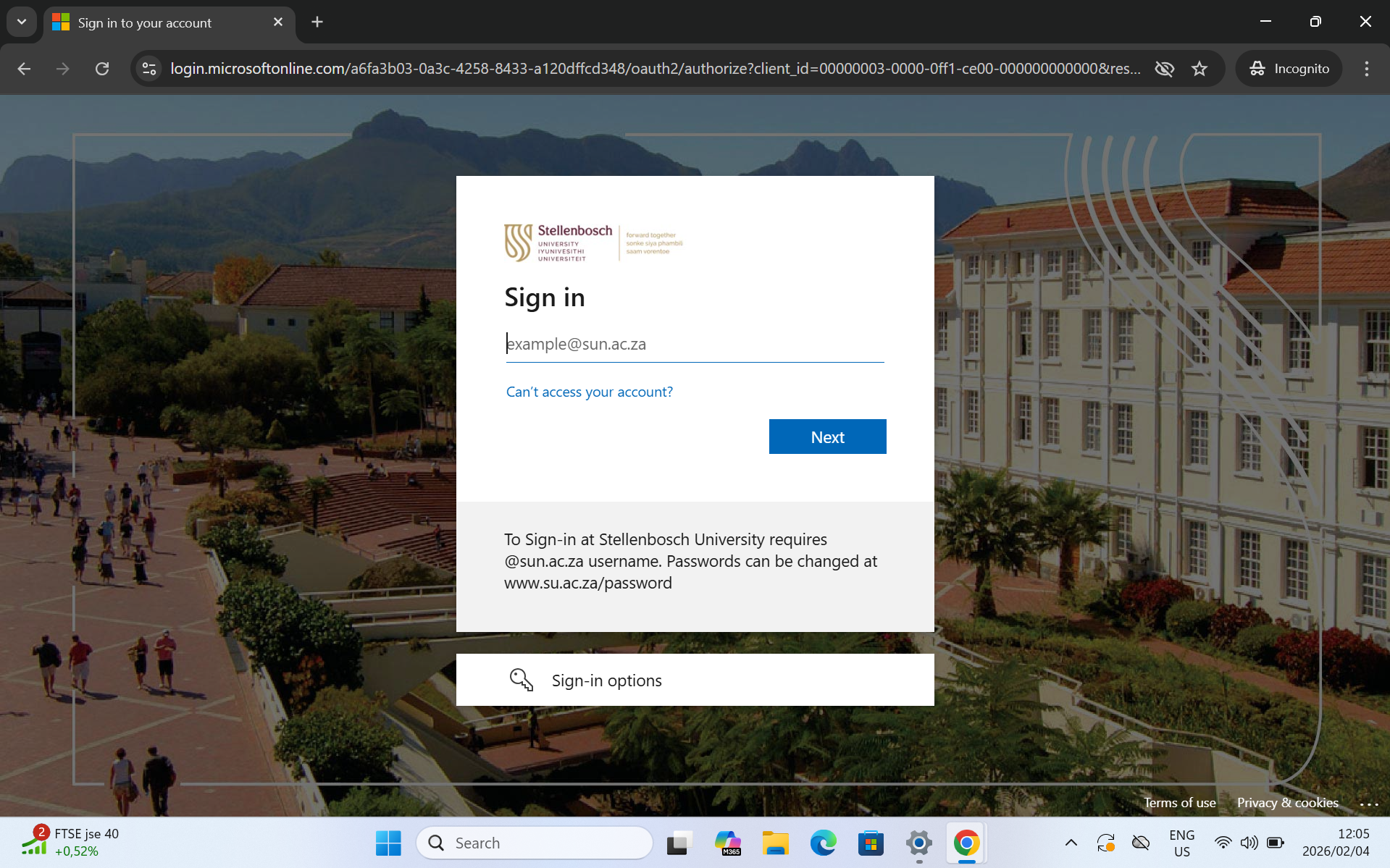
And your Password
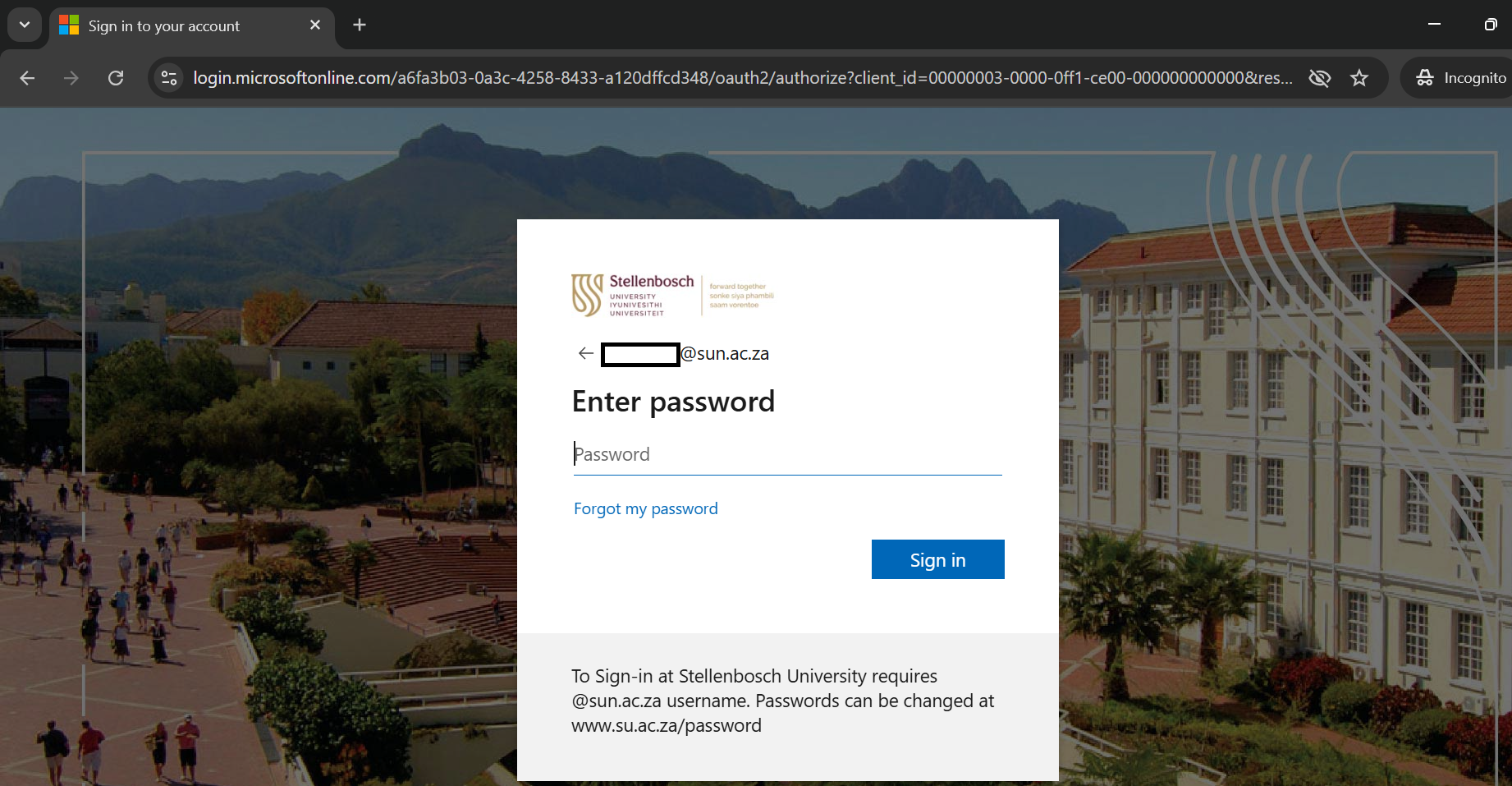
- Authenticate using your Microsoft Authenticator or any alternative method your are using
- Once in, select Student Software
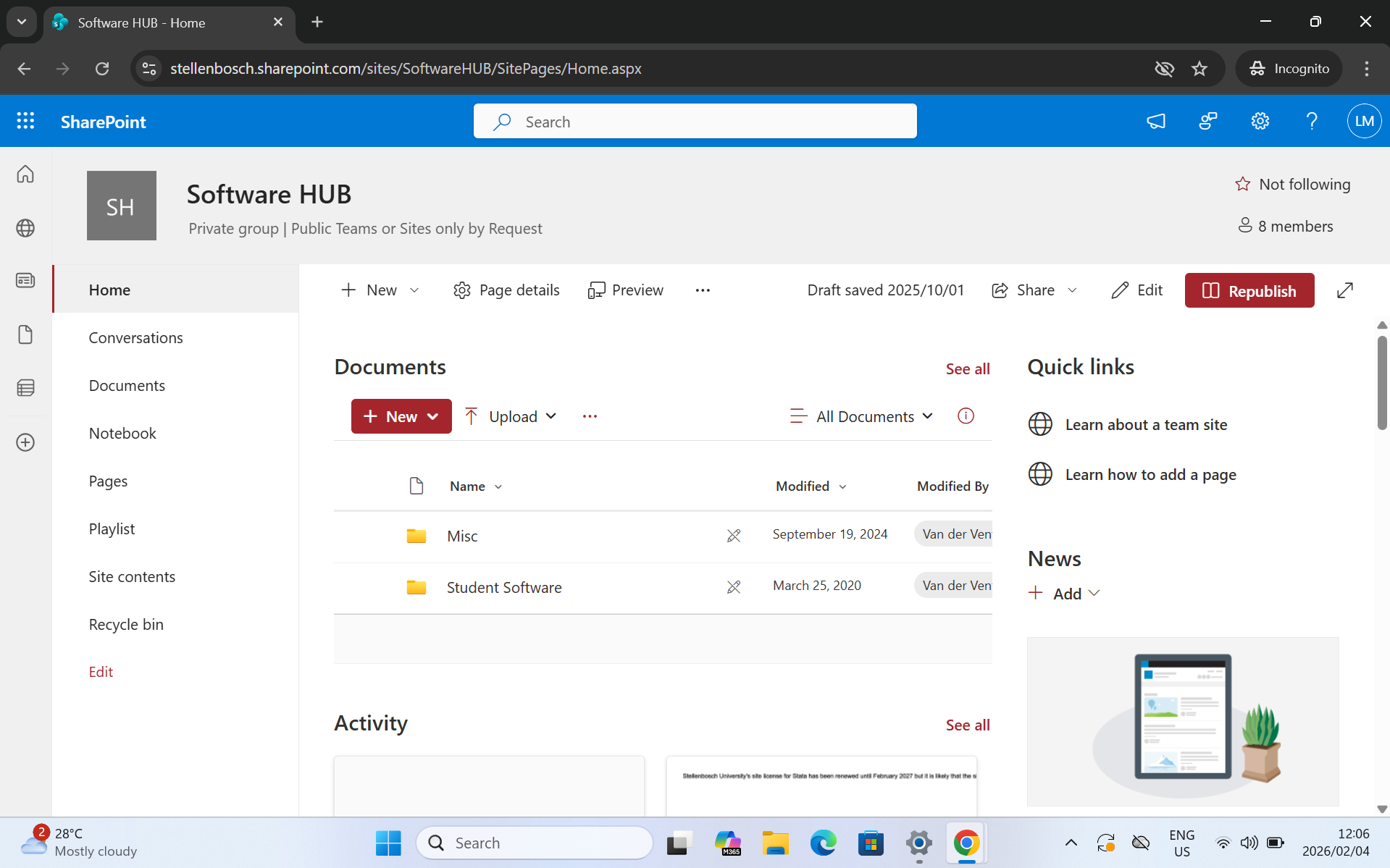
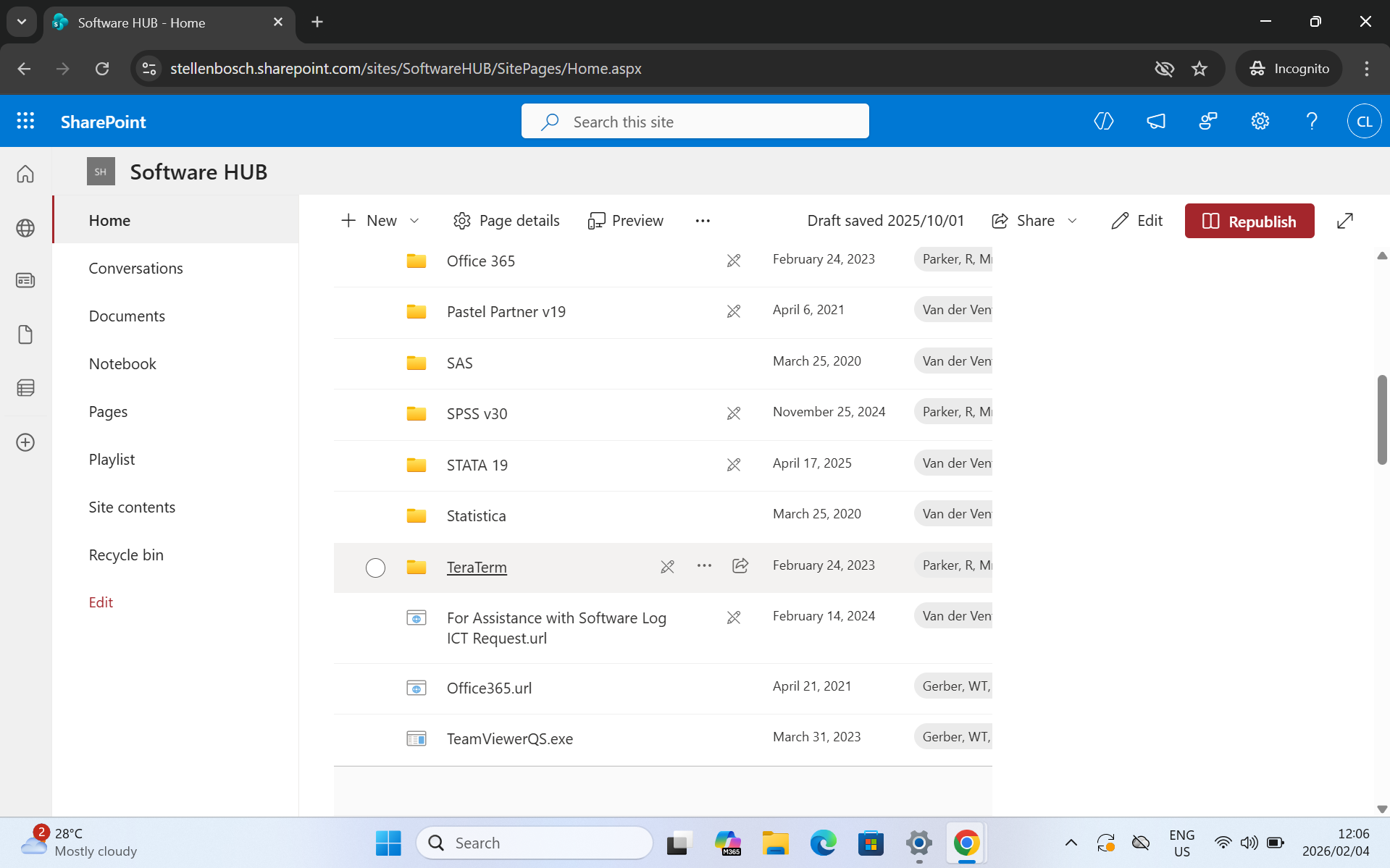
- Scroll down to the Tera Term folder and open
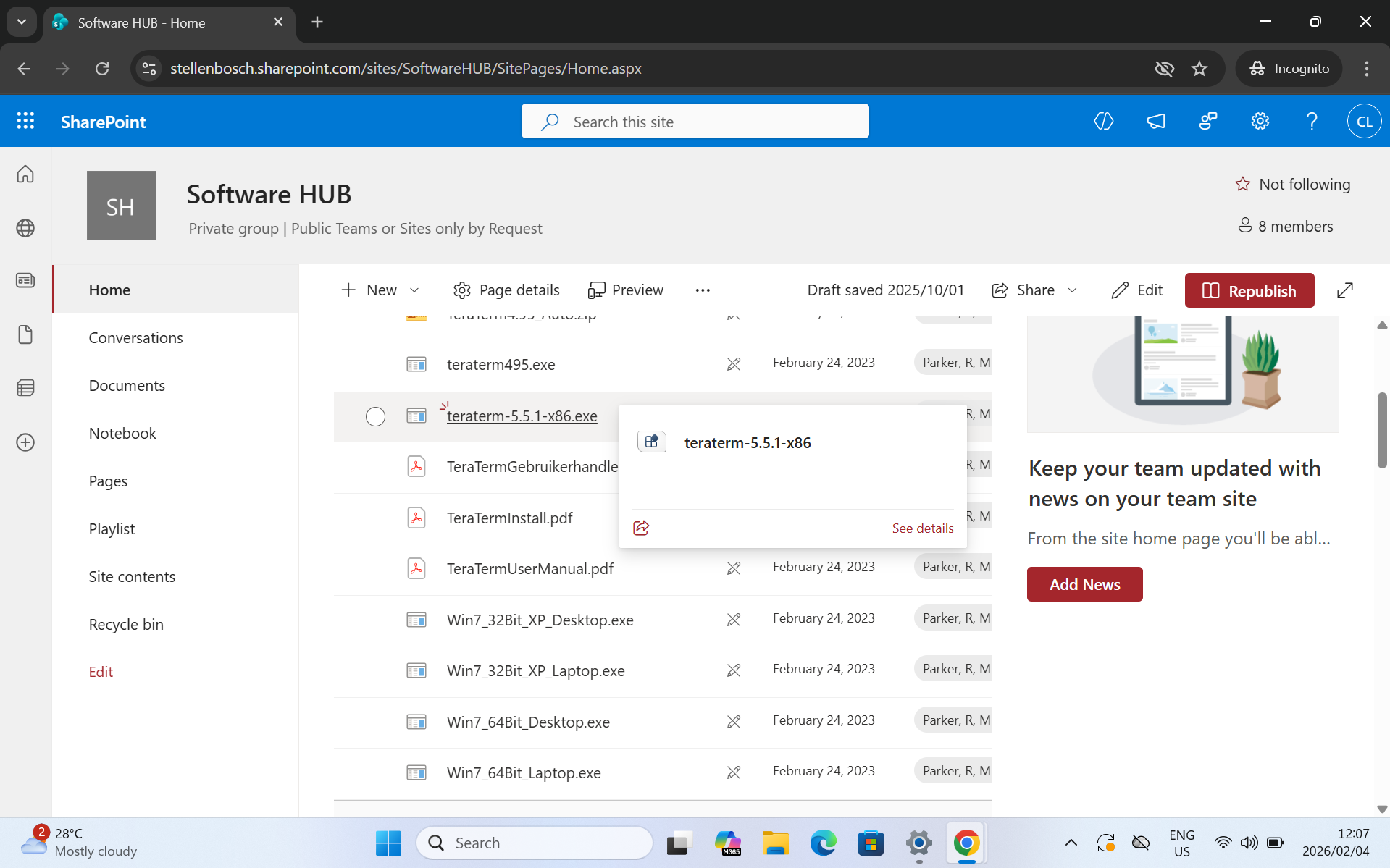
- Select and download the executable teraterm-5.5.1-x86.exe
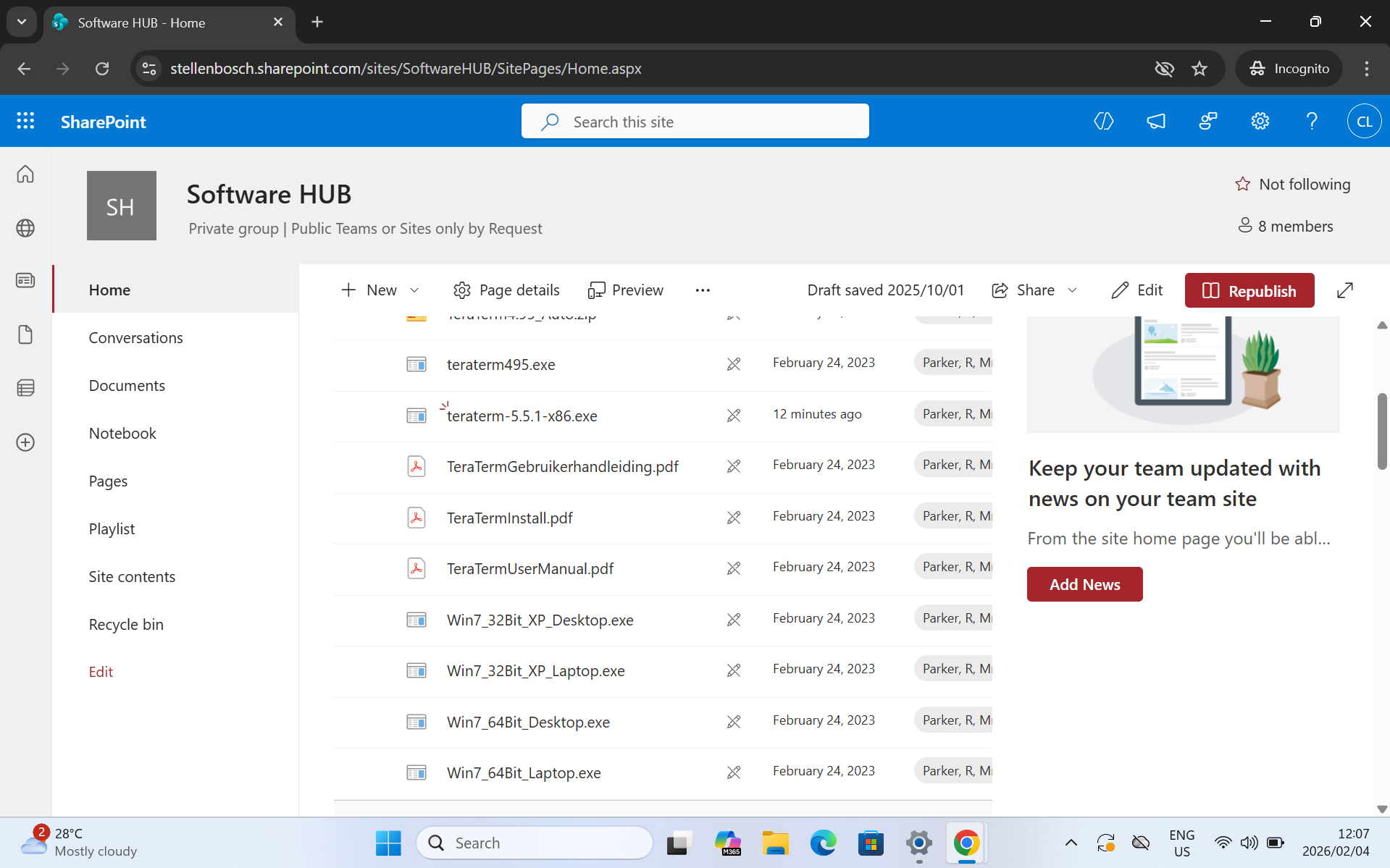
- You also need to download the keyboard mapping file. Depending on your device either download Win7_64Bit_Desktop.exe or Win7_64Bit_Laptop.exe
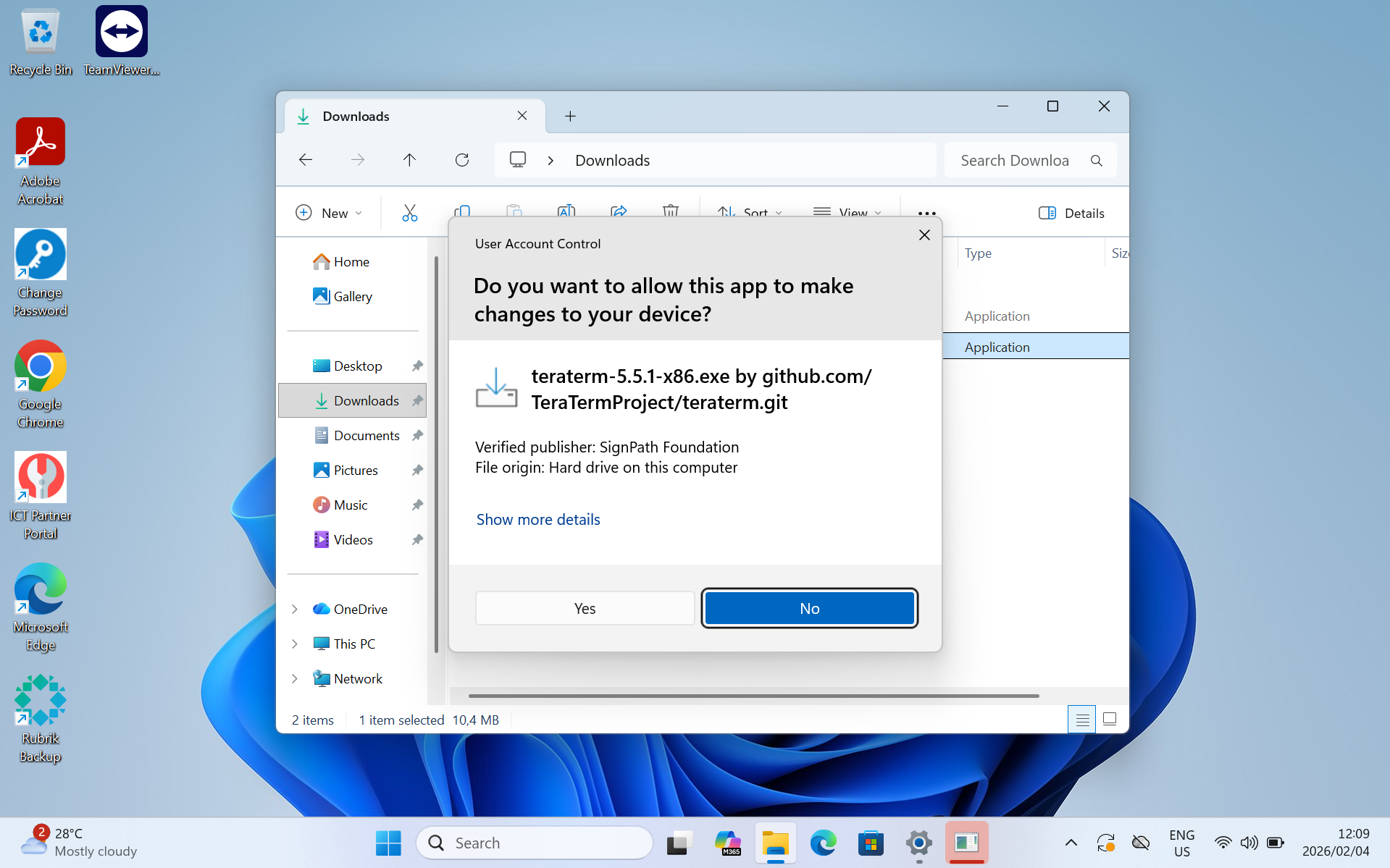
- Go to downloads and run the teraterm-5.5.1-x86.exe and select Yes
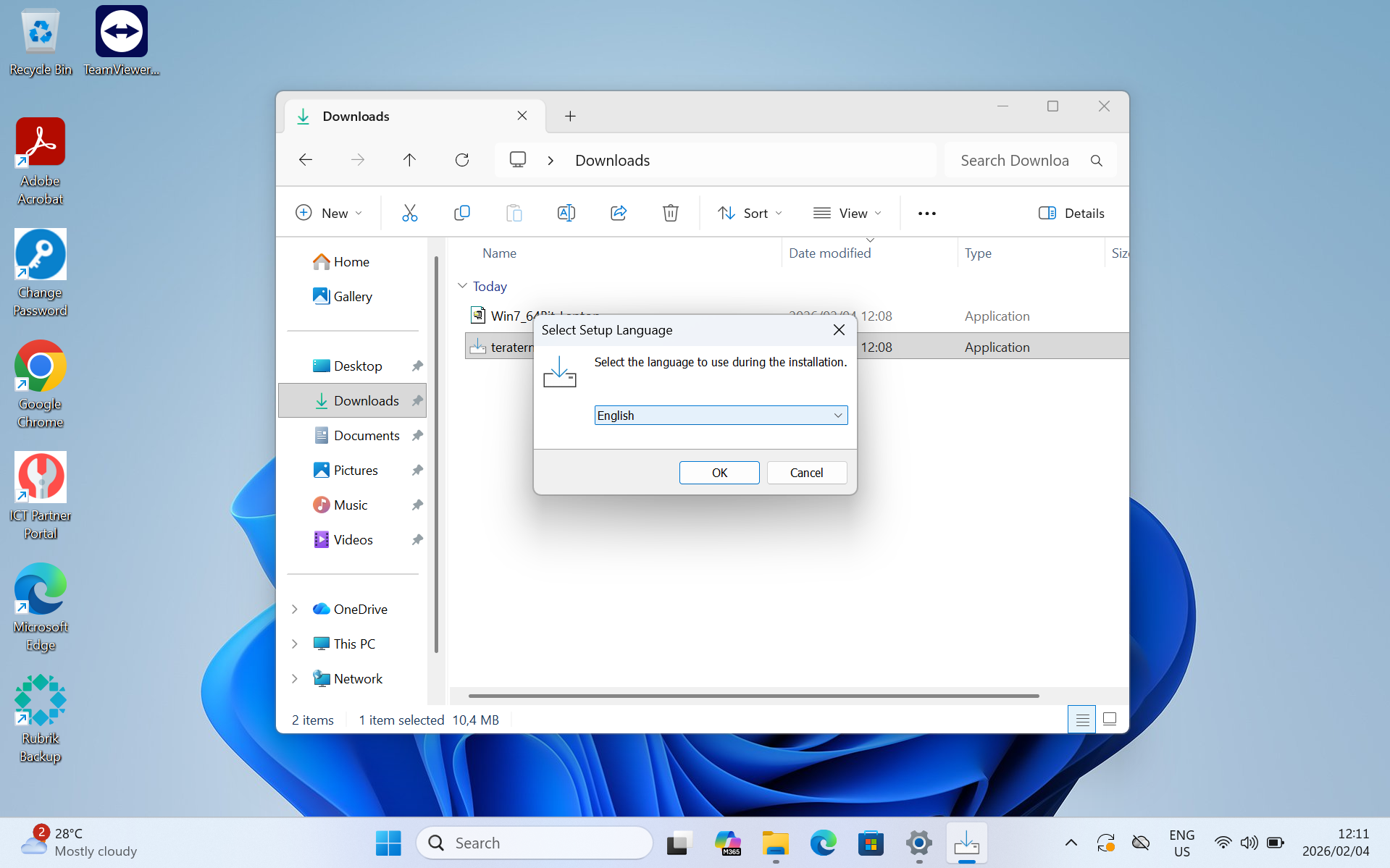
- Select English for installation language
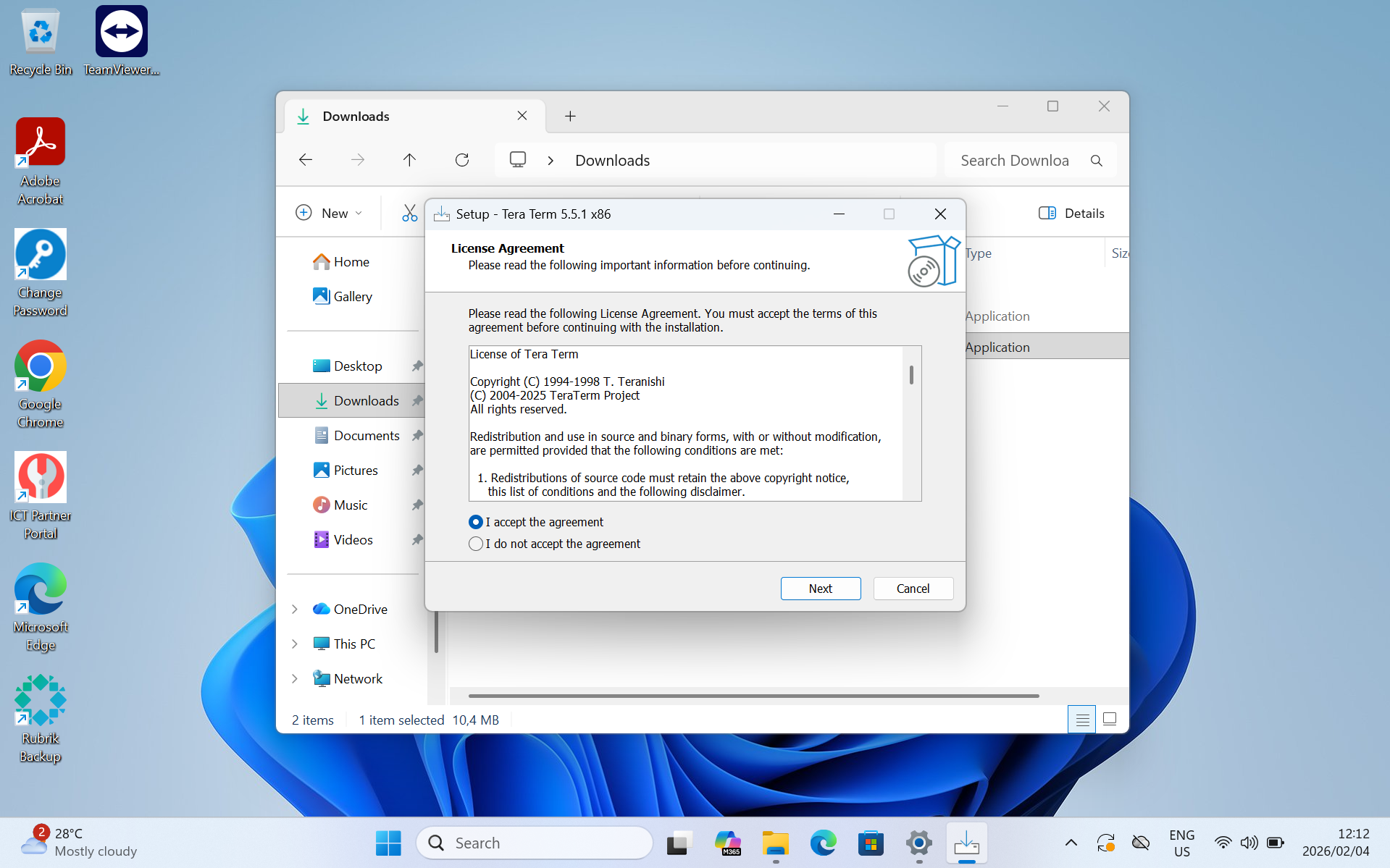
- Accept the term and conditions
- Click Next
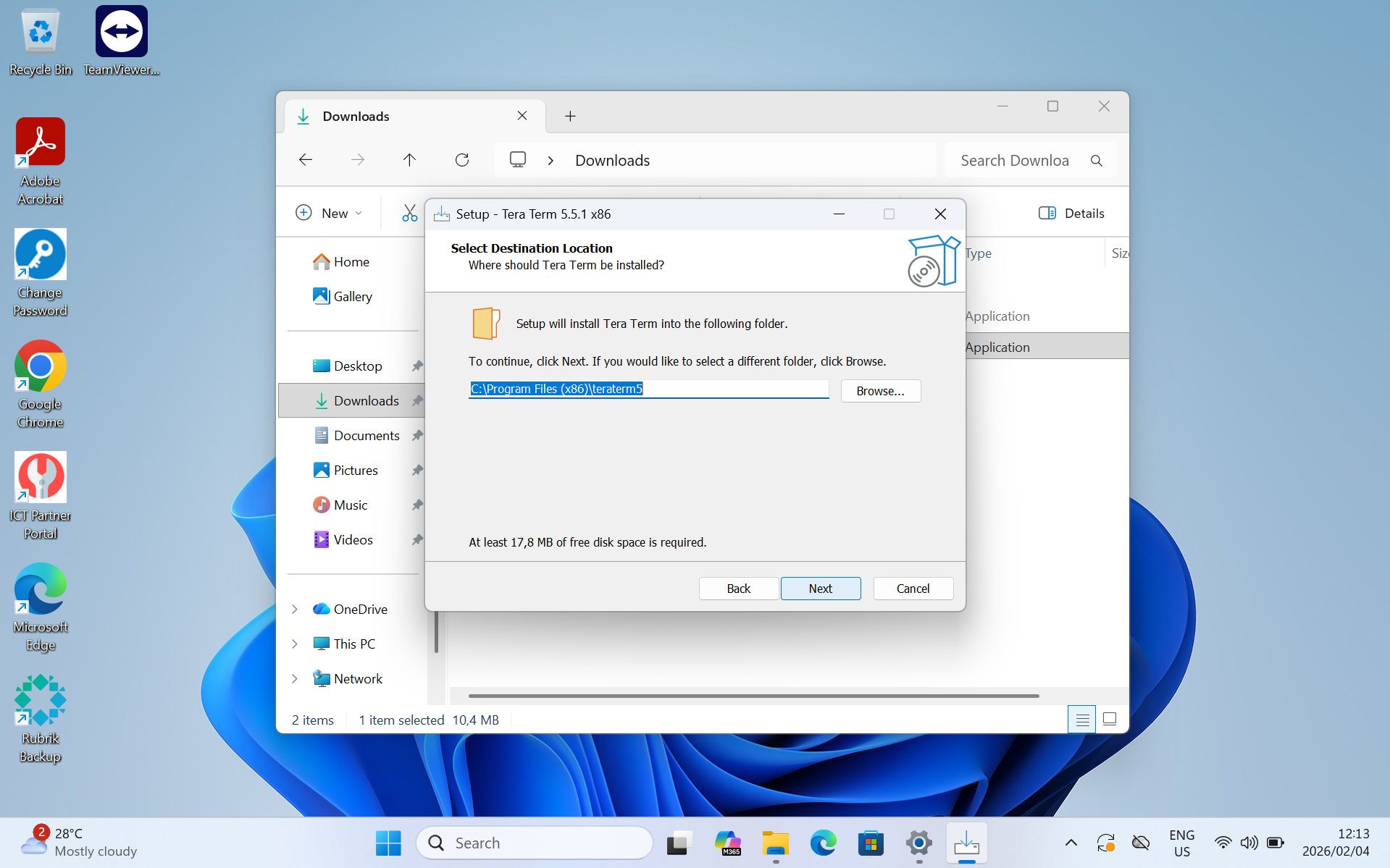
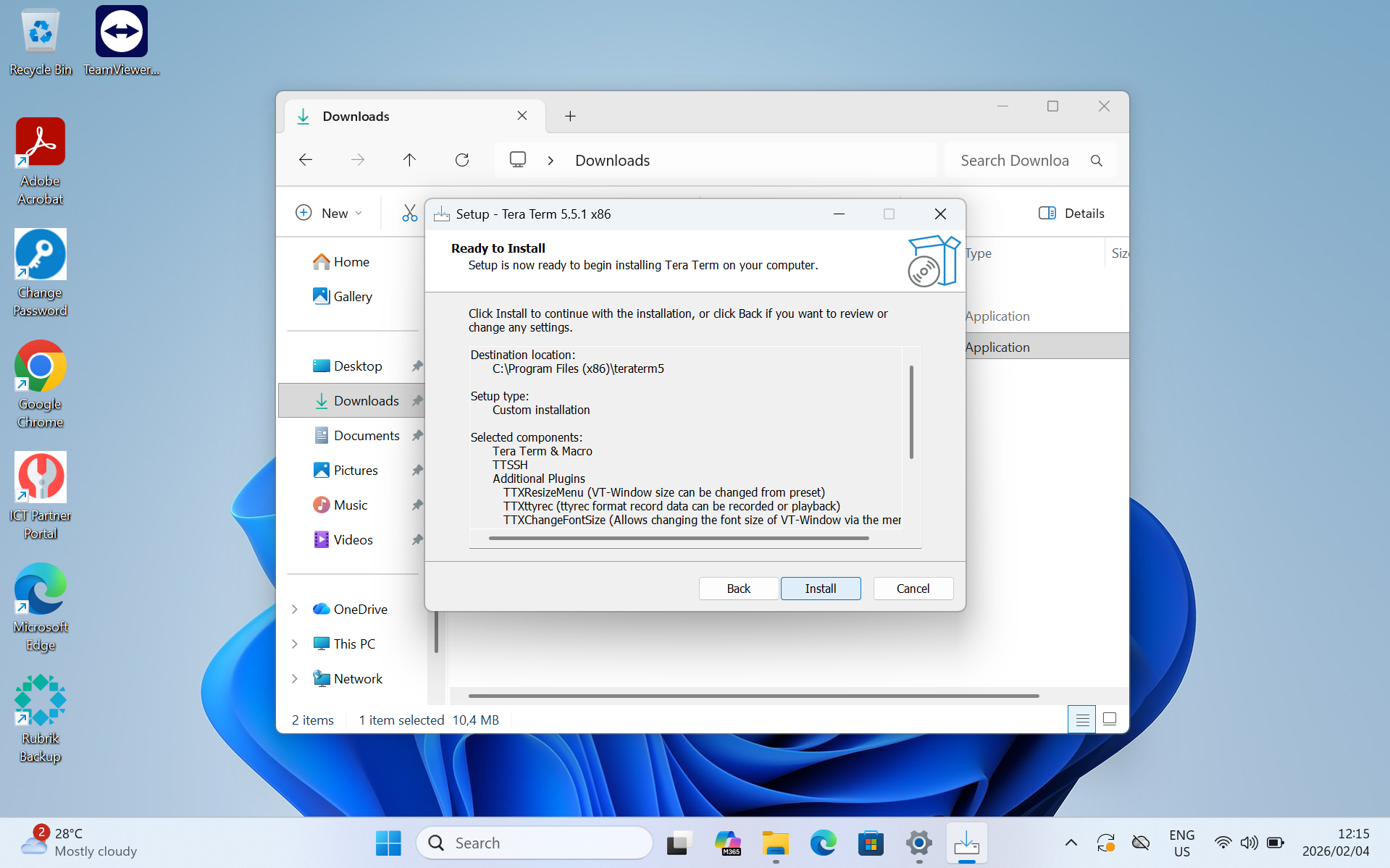
- Make sure your option select is the same as below
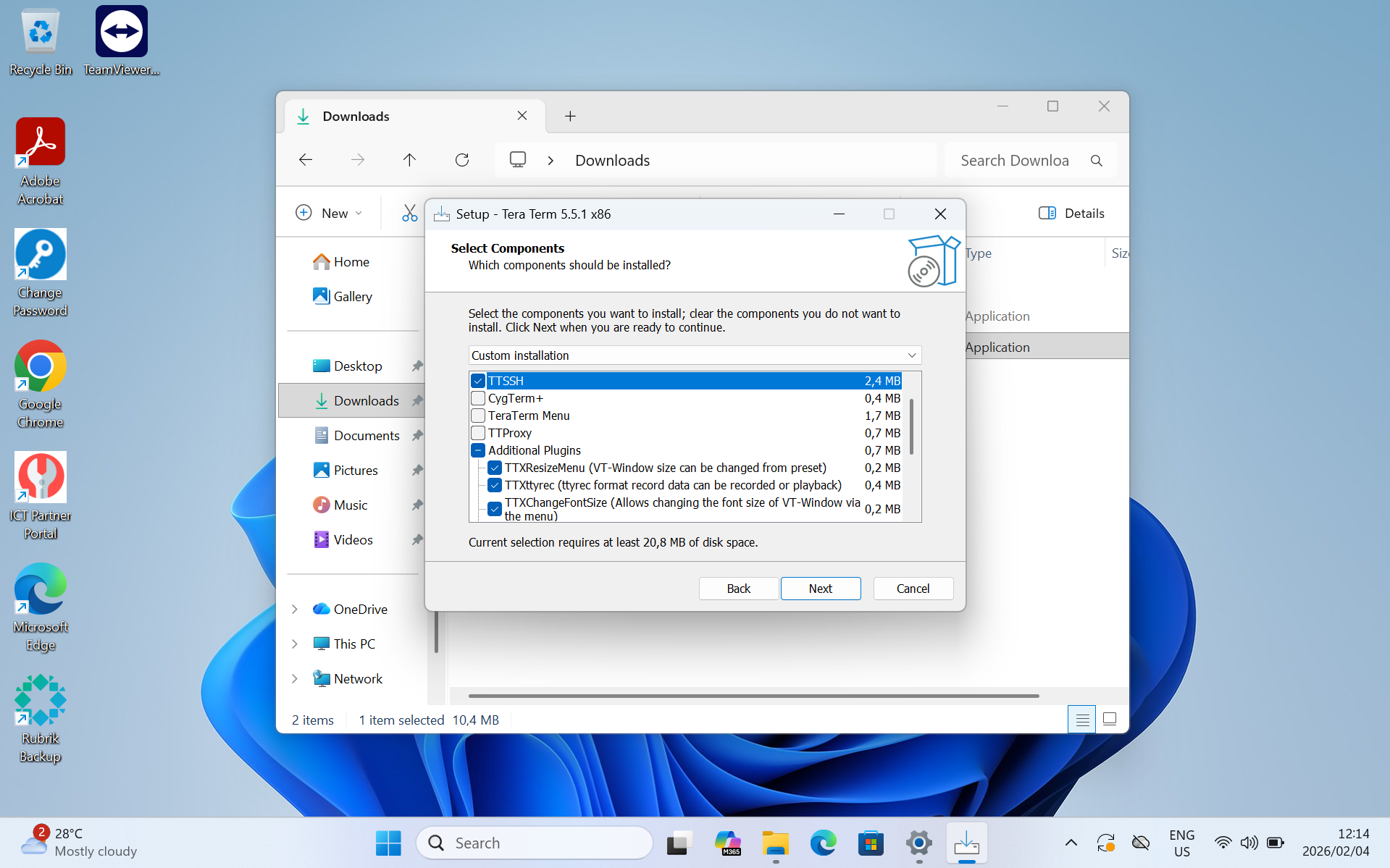
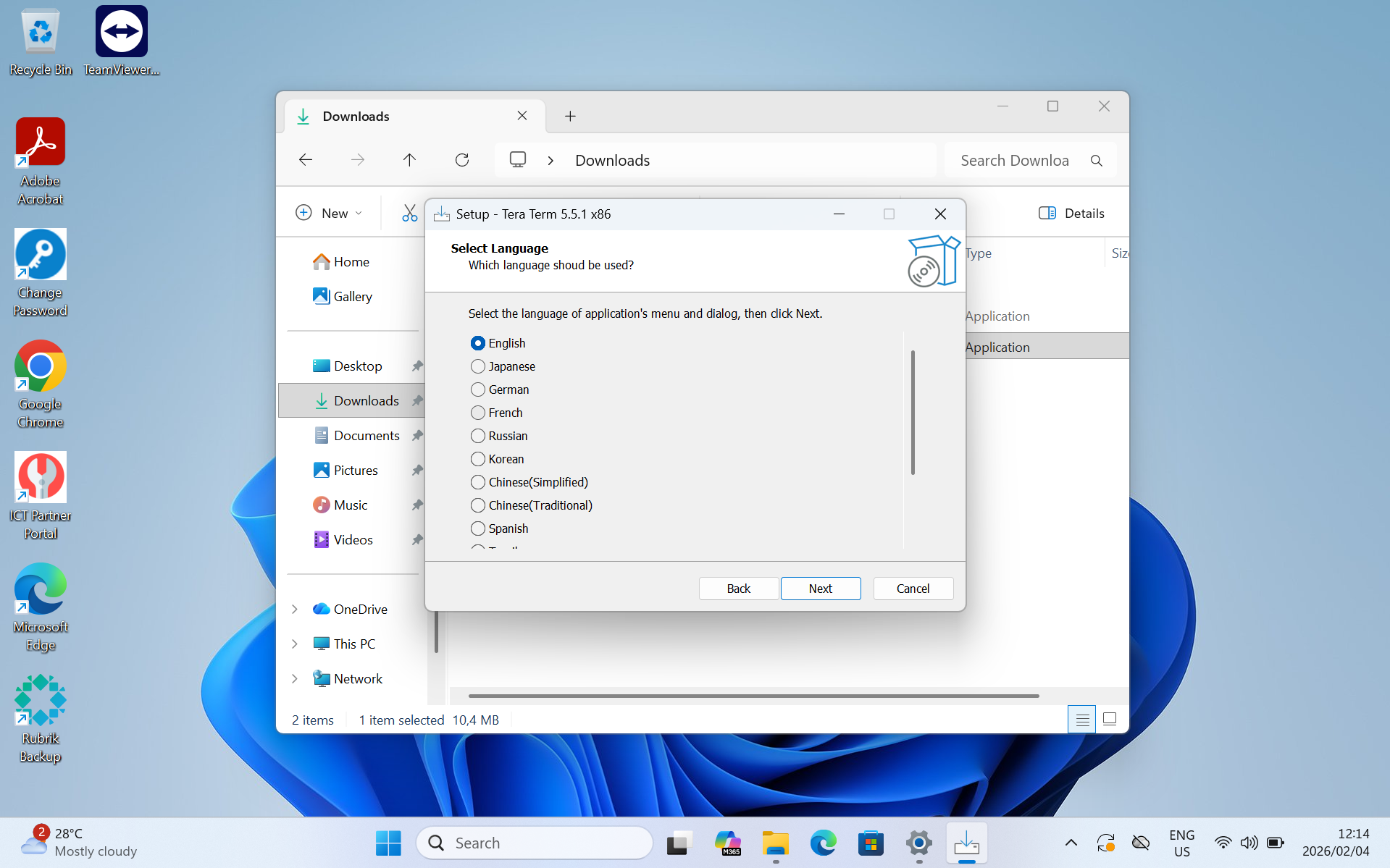
- Select English for the application language
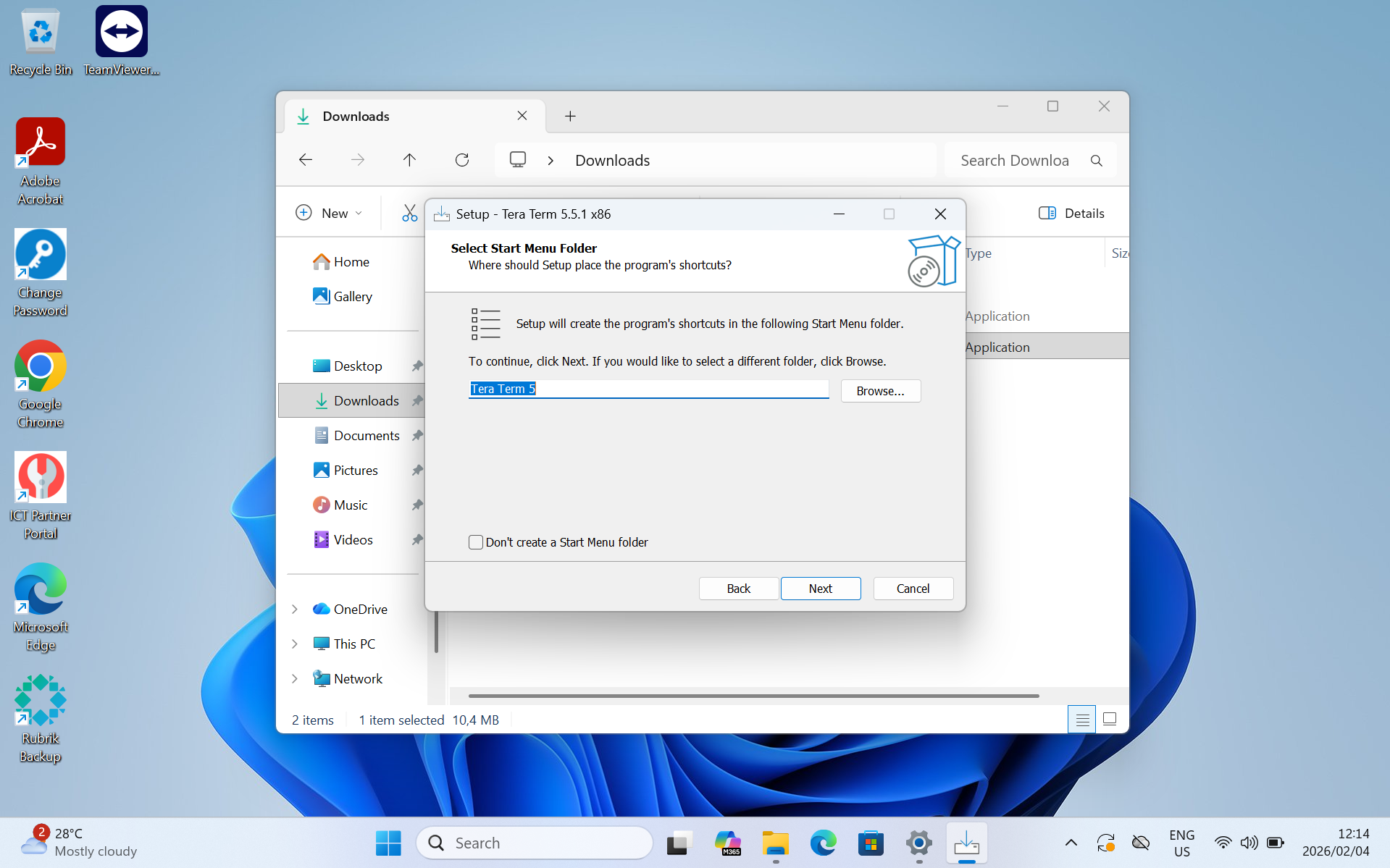
- Select Next until you reach the finished screen
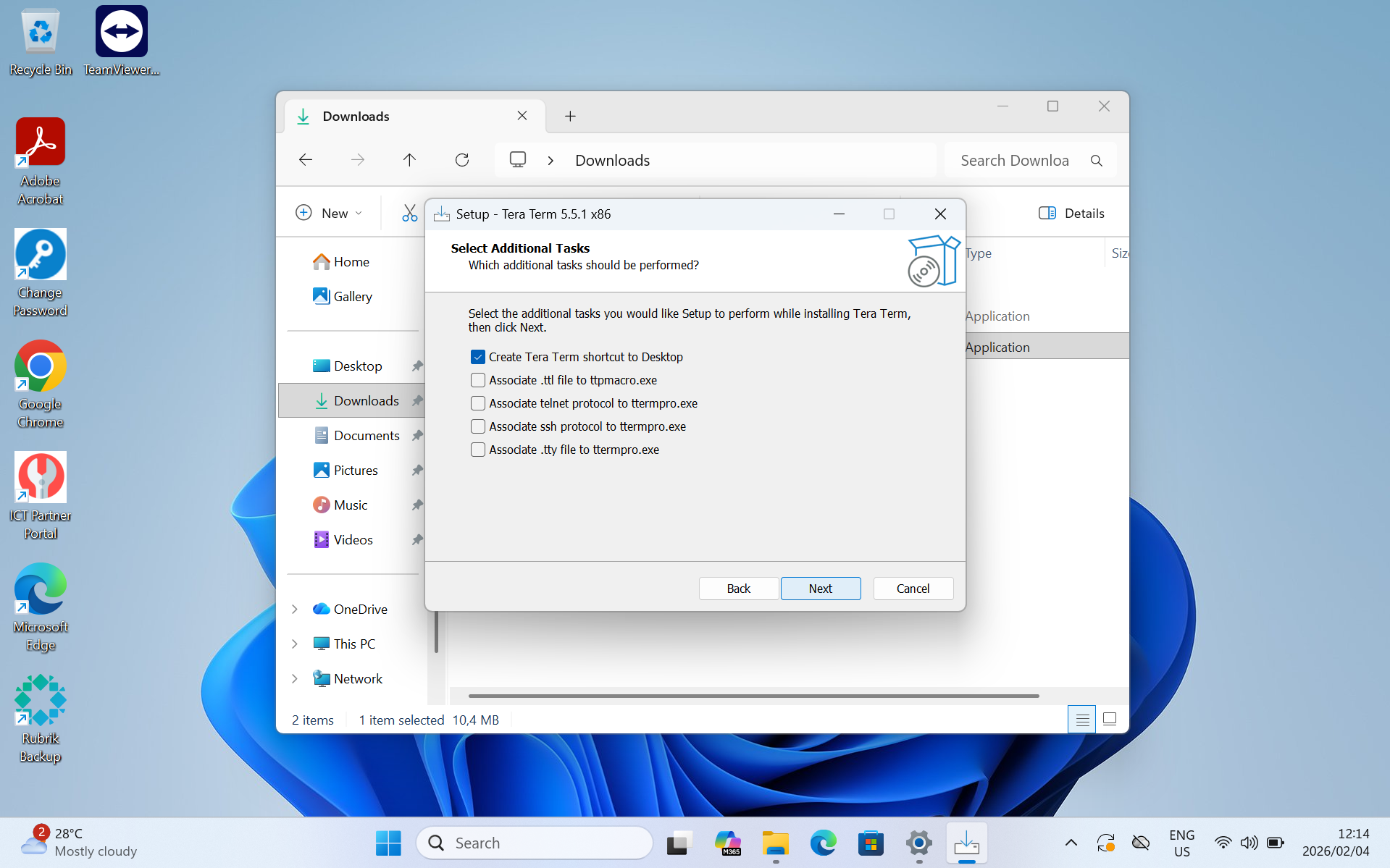
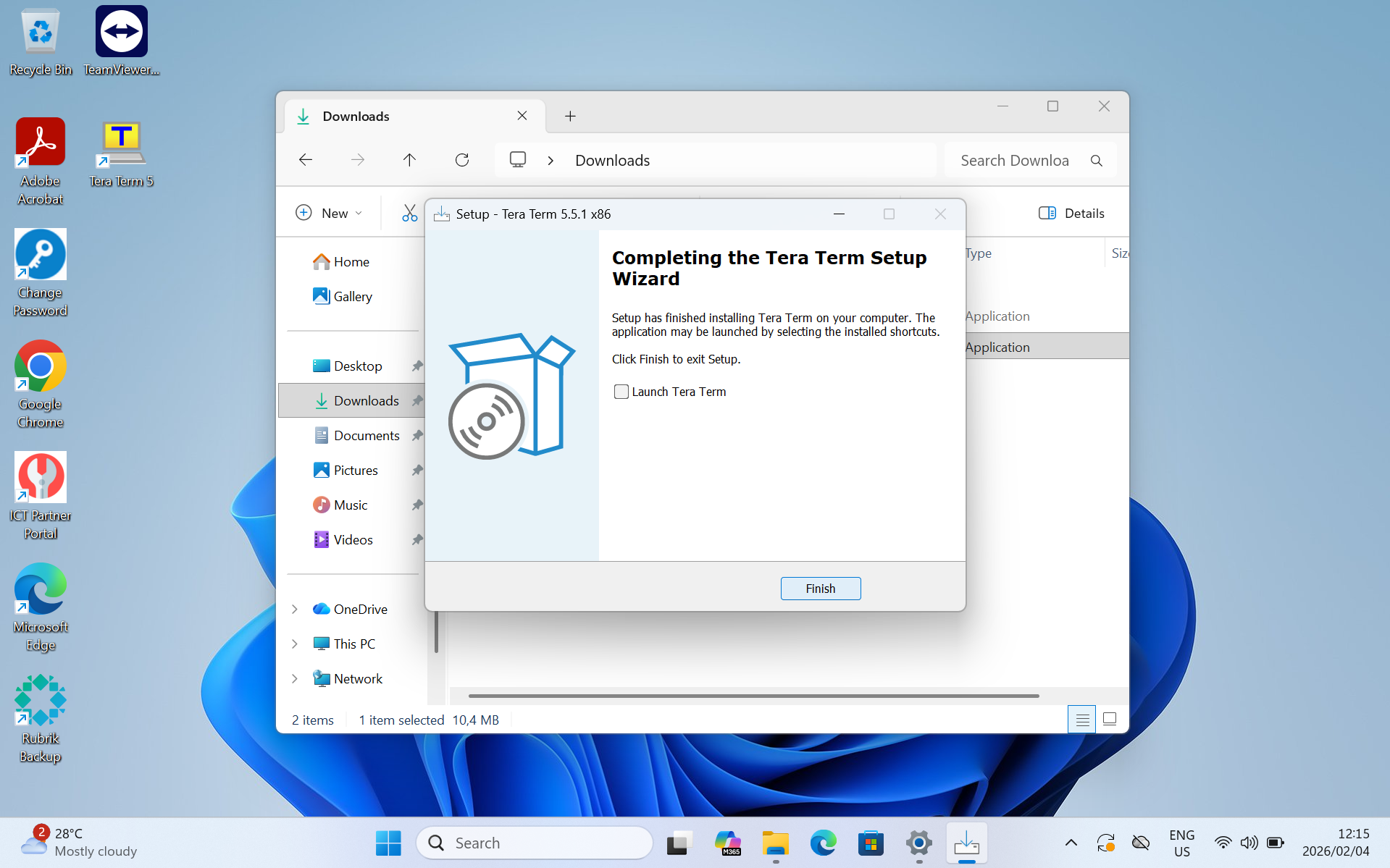
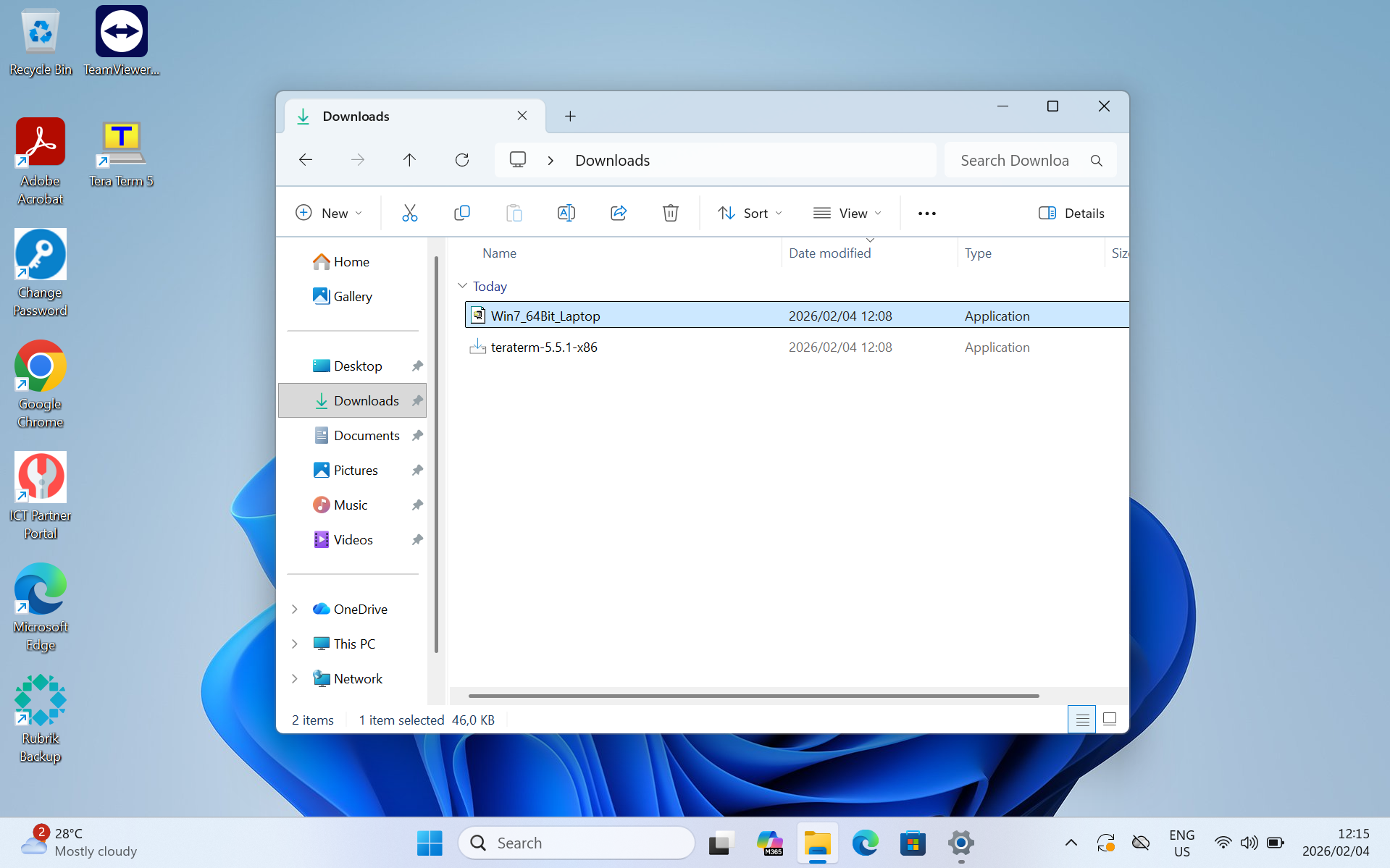
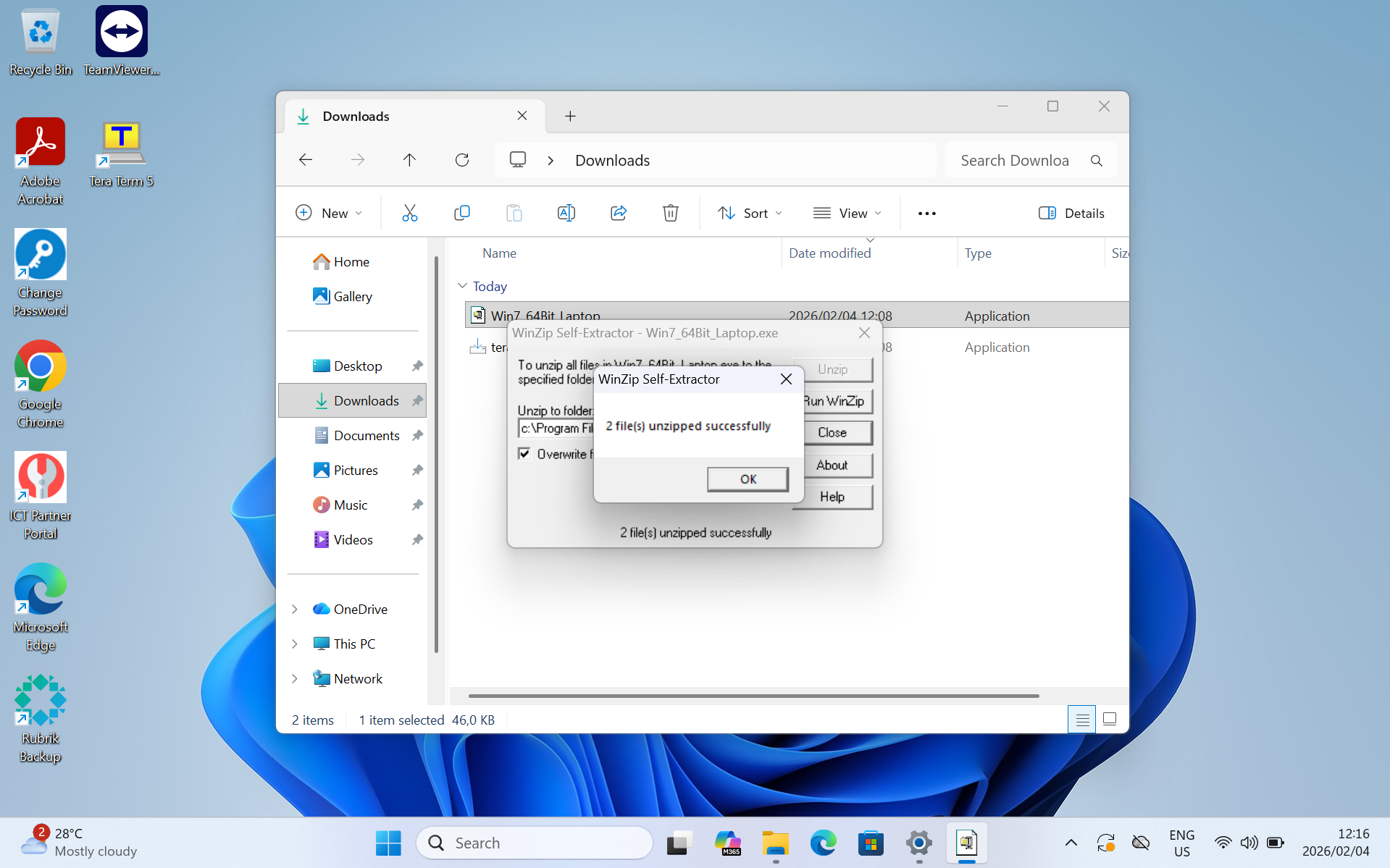
- Once installation is done, click Finished and run the keyboard zip file from downloads
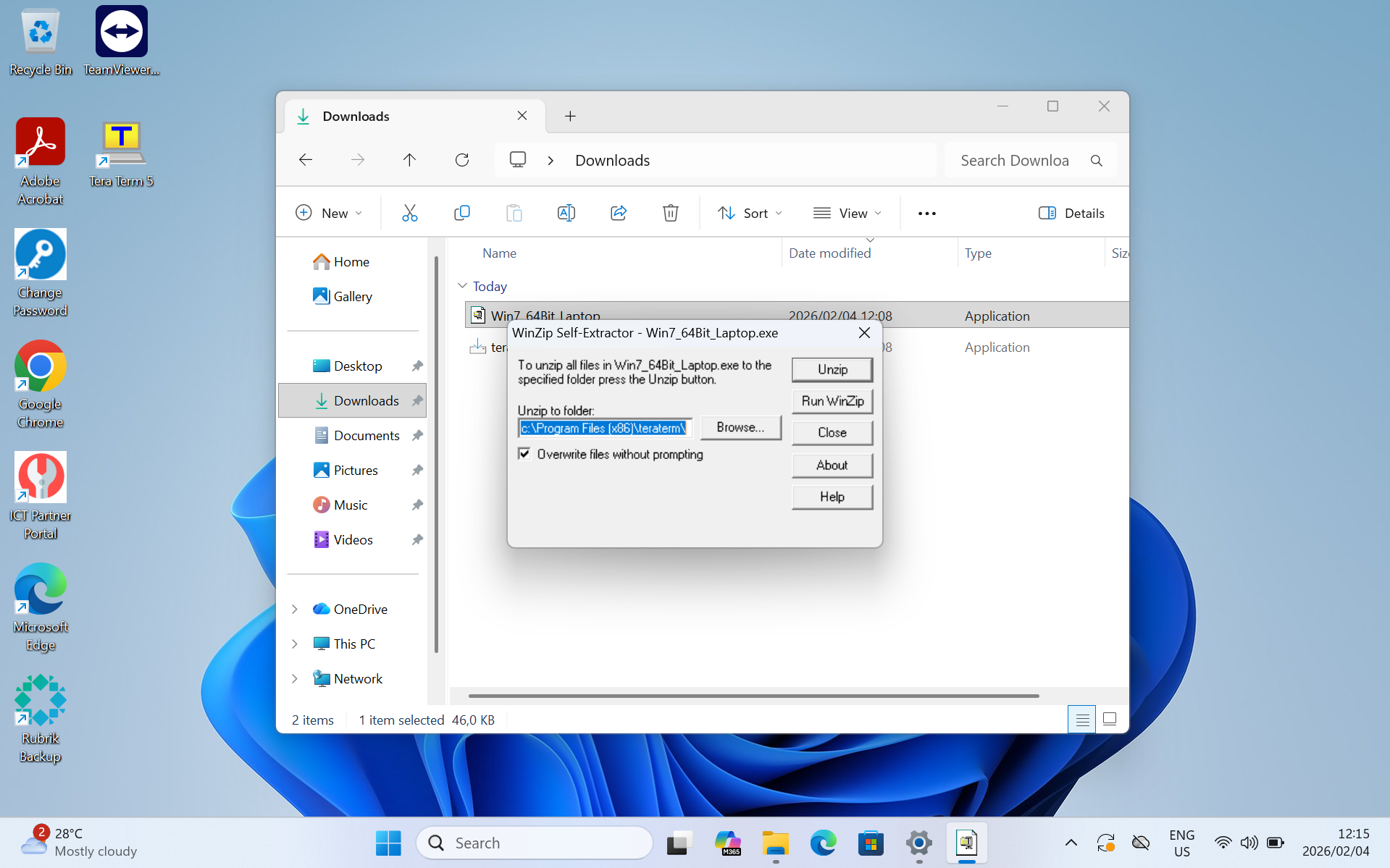
- Click on Unzip, your keyboard should be mapped
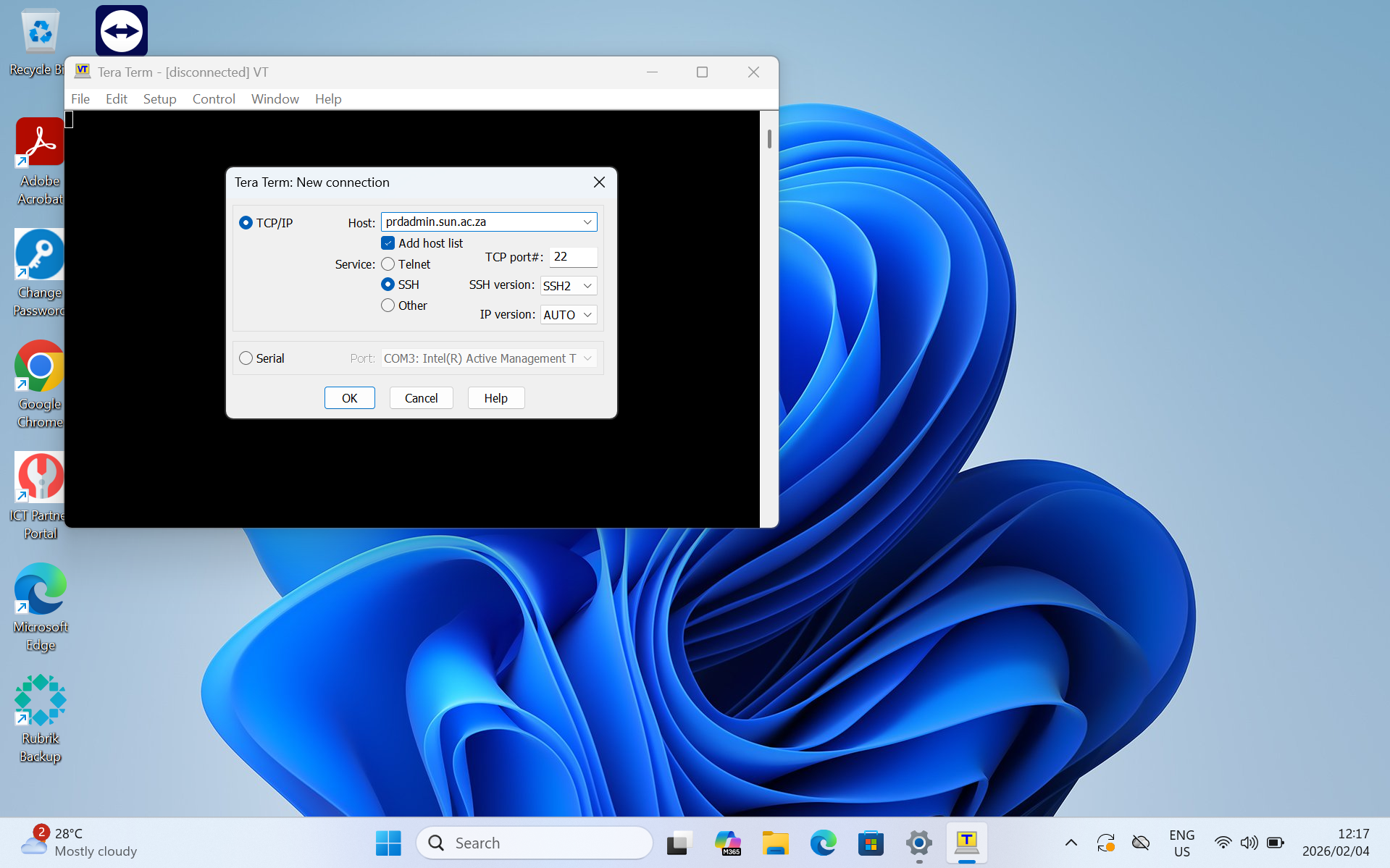
- You can now open Tera Term. Enter prdadmin.sun.ac.za into host and click OK. You should now be able to use Tera Term
| You may also want to use visual panels to communicate related information, tips or things users need to be aware of. |
Related articles
Related articles appear here based on the labels you select. Click to edit the macro and add or change labels.
