
-
Created by
 Unknown User (rylands), last updated by C Layman on Feb 25, 2026
3 minute read
Unknown User (rylands), last updated by C Layman on Feb 25, 2026
3 minute read
Step by step instructions on how to install Office 365.
Step-by-step guide
- Log in to http://portal.office.com with your university credentials
- Type username@sun.ac.za
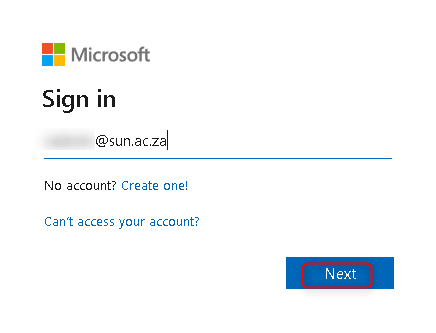
- Enter your password
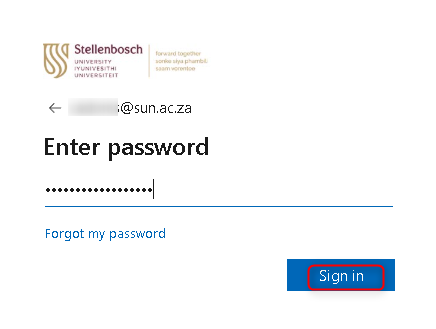
- Approve to Authenticate the sign in.
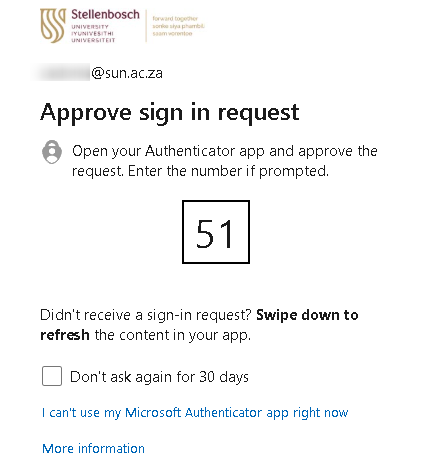
- Type username@sun.ac.za
- Online Office Webpage will now open, Select Apps on the Left side.
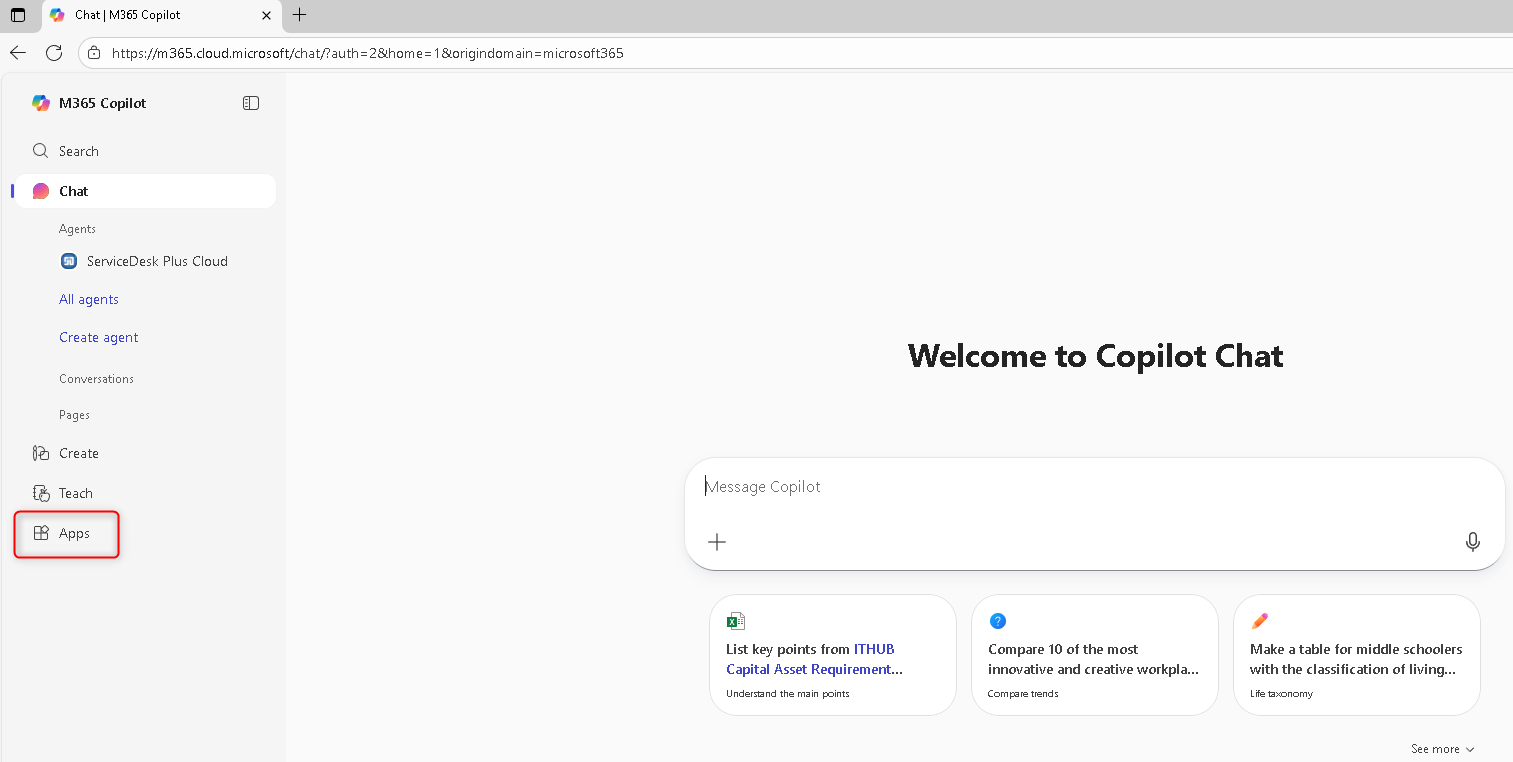
- Select Install apps in the right-hand corner and click on Microsoft 365 apps.

- Select Install Office.
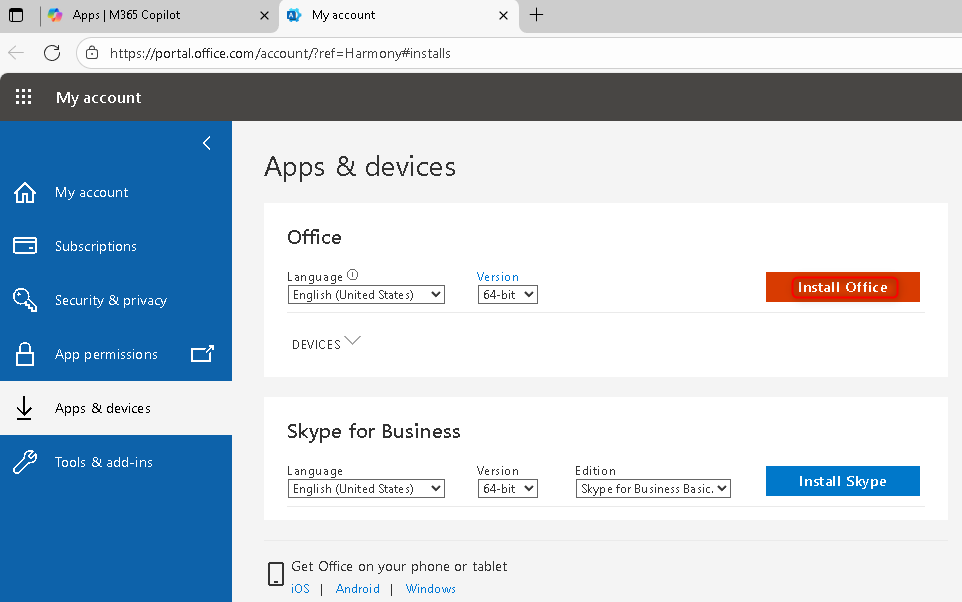
- Office Setup file will now download to your Downloads. Open Downloads Folder and run the Office Setup file to start Office Installation.

- Select Yes to proceed with installation.

- Office will now install, once completed select Close to finish installation.

- Now open the Word Application and select Sign in or create account.
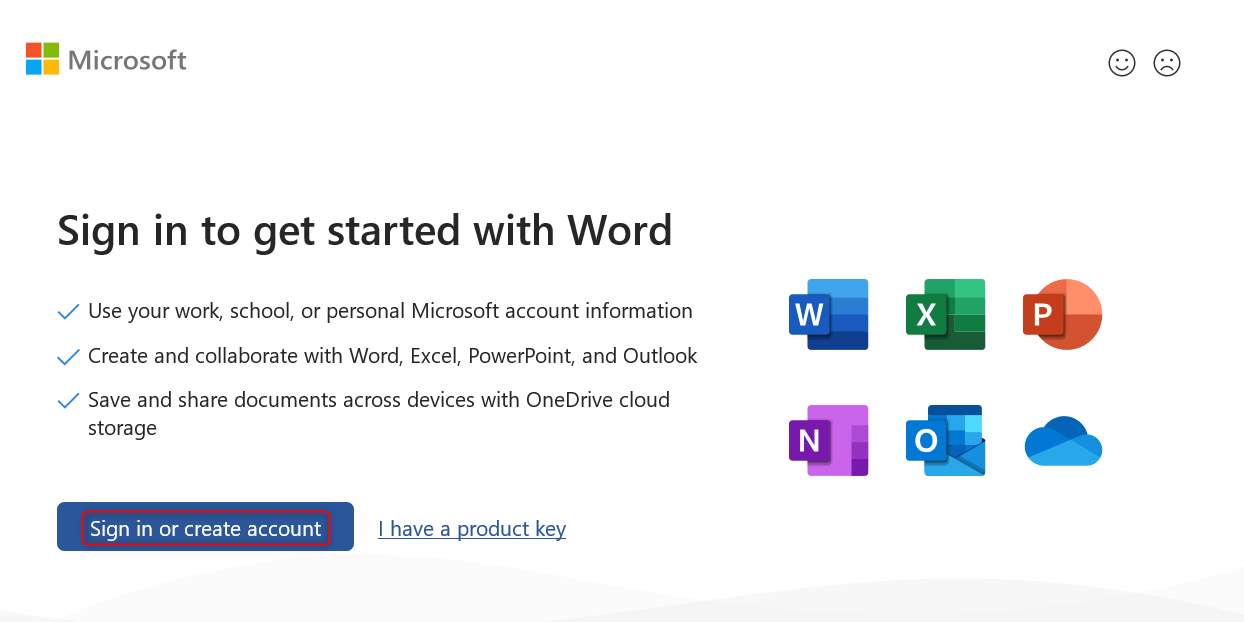
- Now sign in with your Sun Email Address and Password.
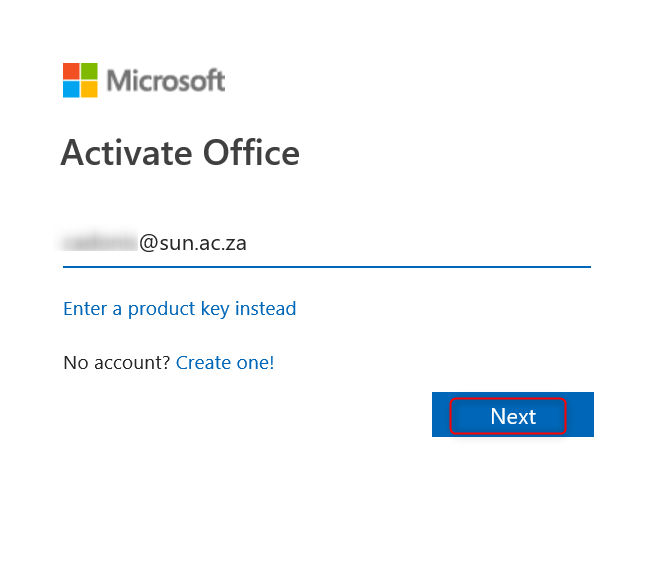

- Approve the Authentication to complete the sign in.

- Select Yes / No to proceed.
- Your Office License is now Activated.