-
Created by
 C Layman on Feb 05, 2026
3 minute read
C Layman on Feb 05, 2026
3 minute read
NB** you can only do this guide after you have been given access to the Citrix Workspace group. You can log a request for that by clicking here
Step-by-step guide
- Below is the latest version for you Mac OS. Please select link below and download the DMG file for Installation.
Citrix Workspace app 2511.1 for Mac
Release Date: Jan 19, 2026
Compatible with:
- macOS 26 Tahoe (up to 26.2)
- macOS 15 Sequoia
- macOS 14 Sonoma
- macOS 13 Ventura
https://www.citrix.com/downloads/workspace-app/mac/workspace-app-for-mac-latest.html
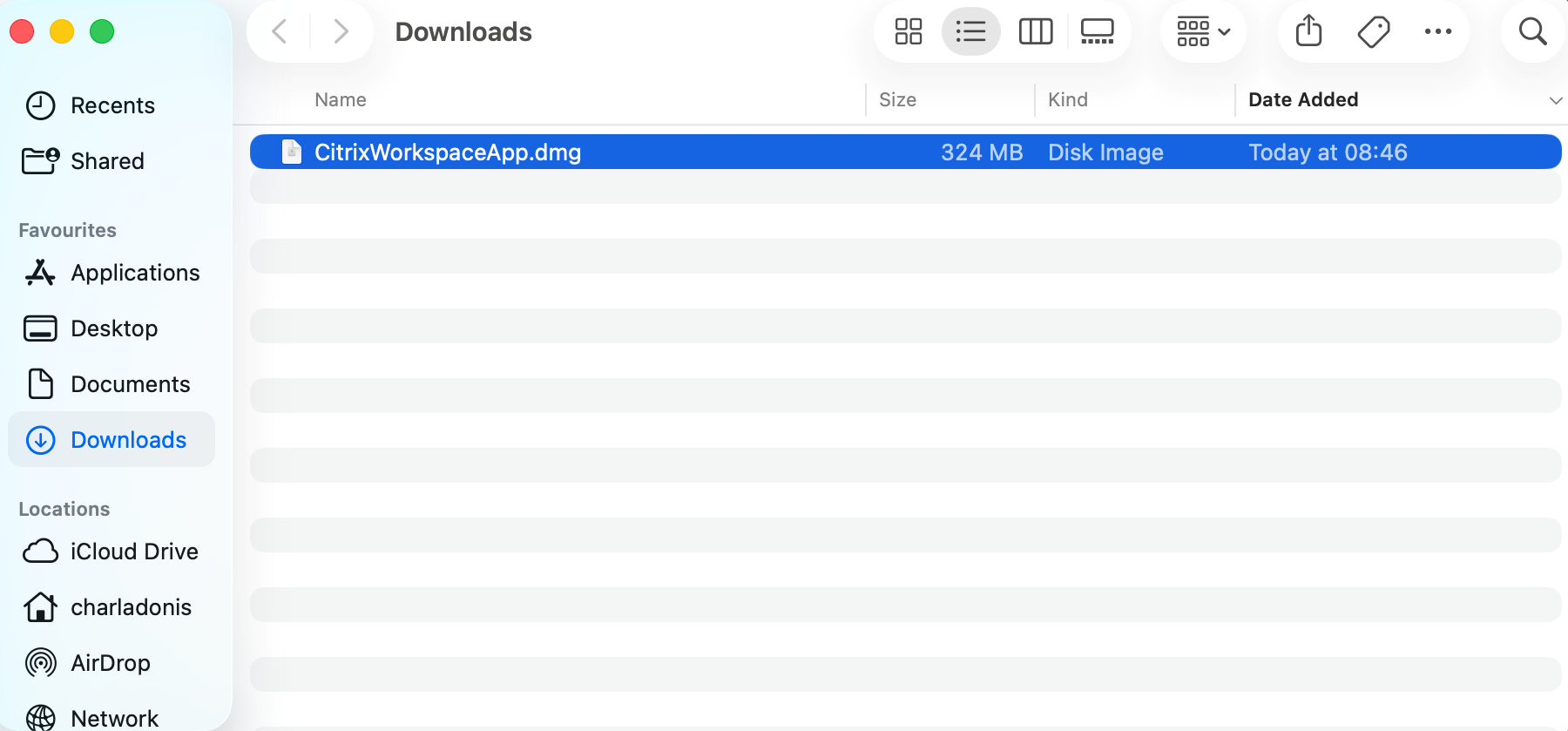
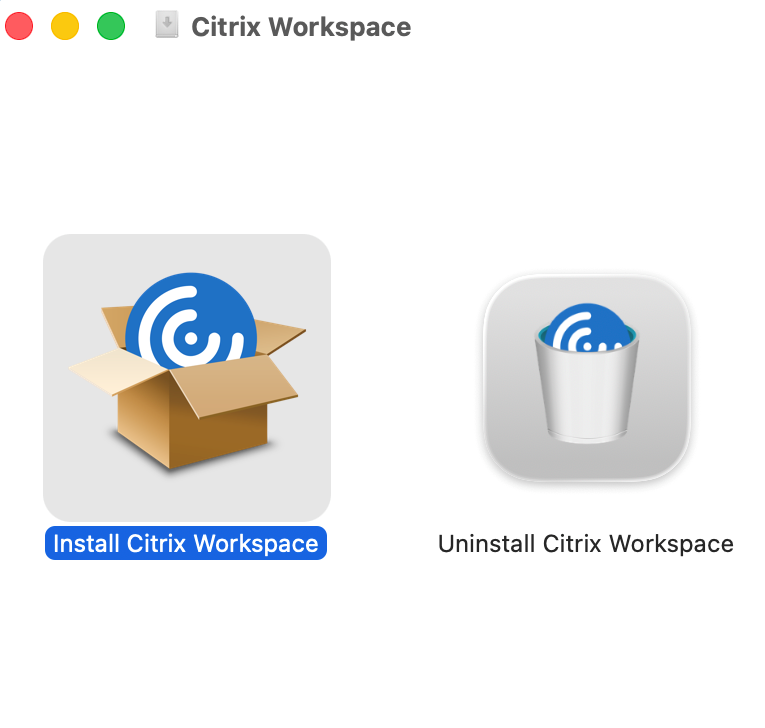
- Now Launch file to begin installation and select Install Citrix Workspace
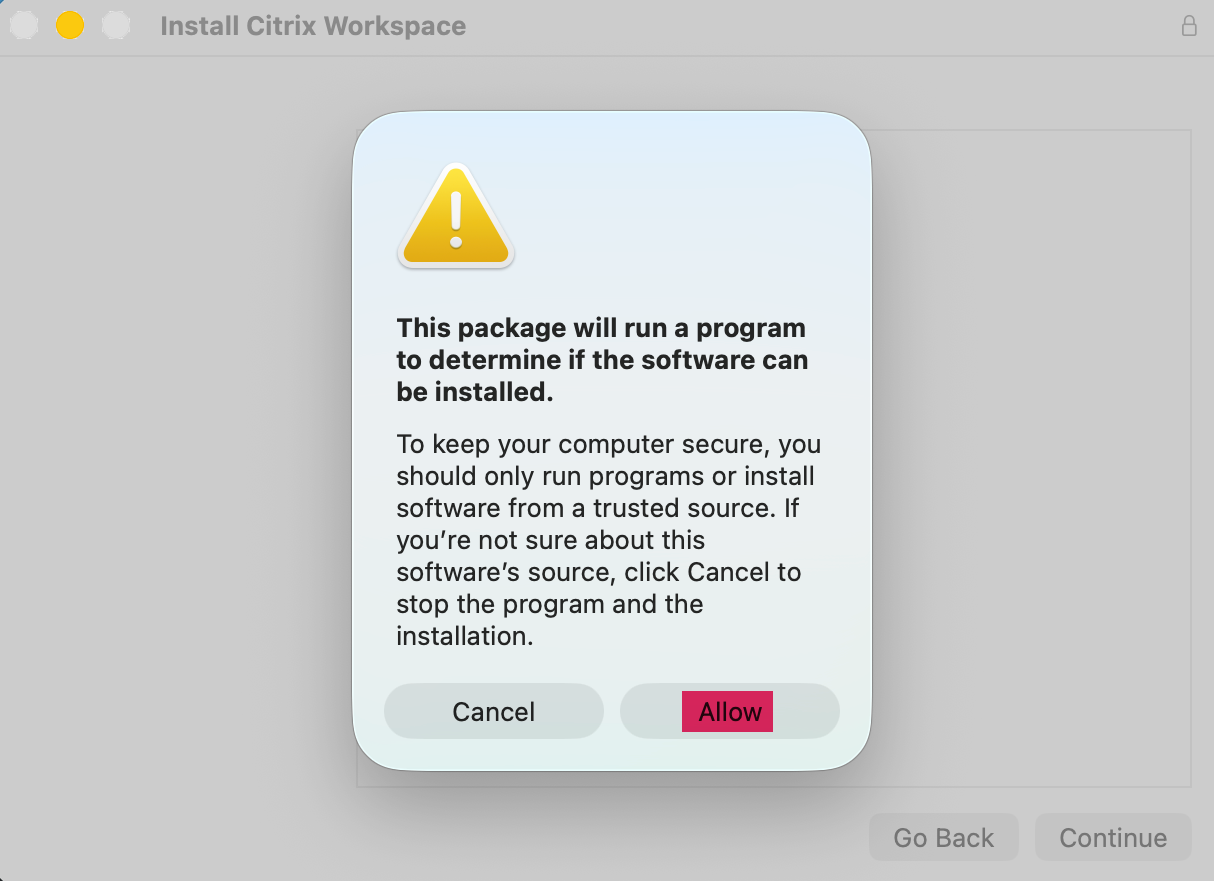
- Select Allow for Program to proceed.
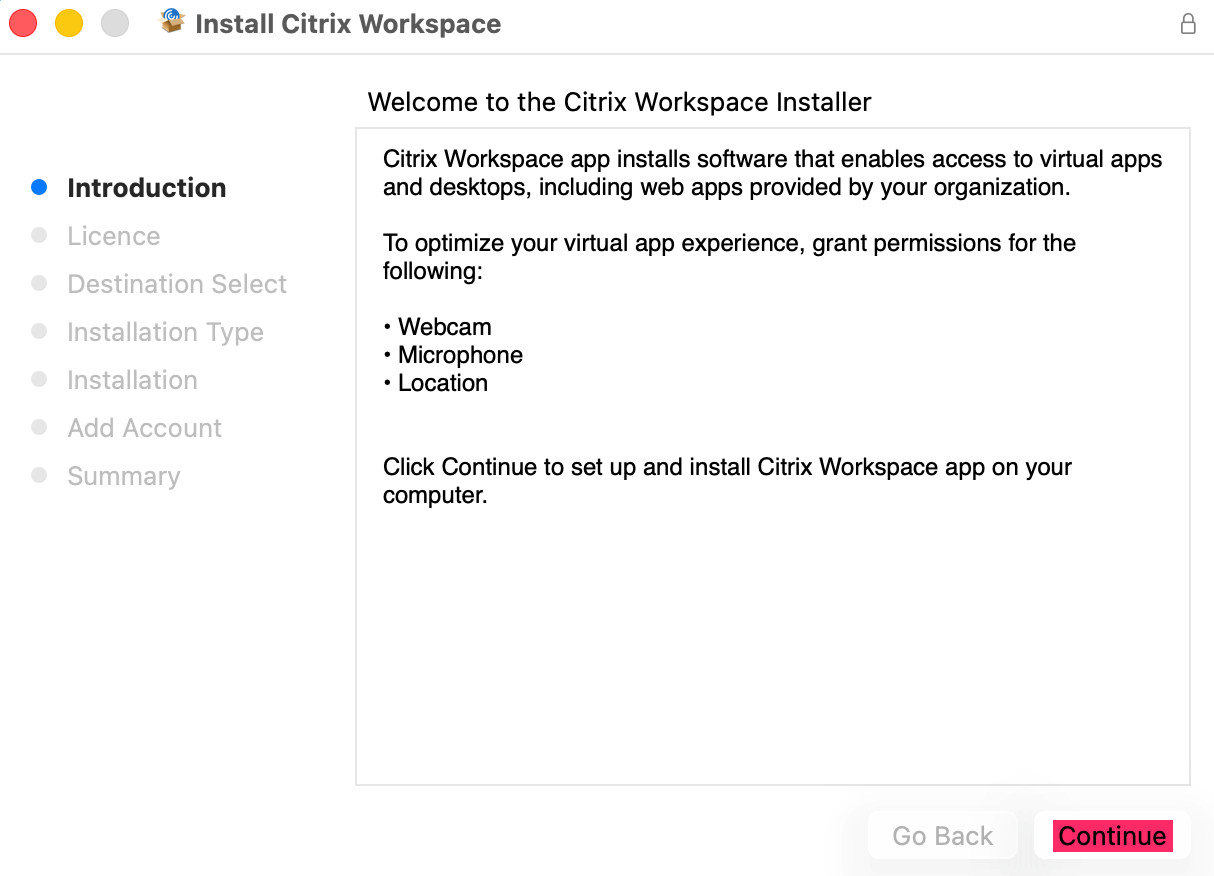
- The installation steps will now begin, select Continue to proceed.
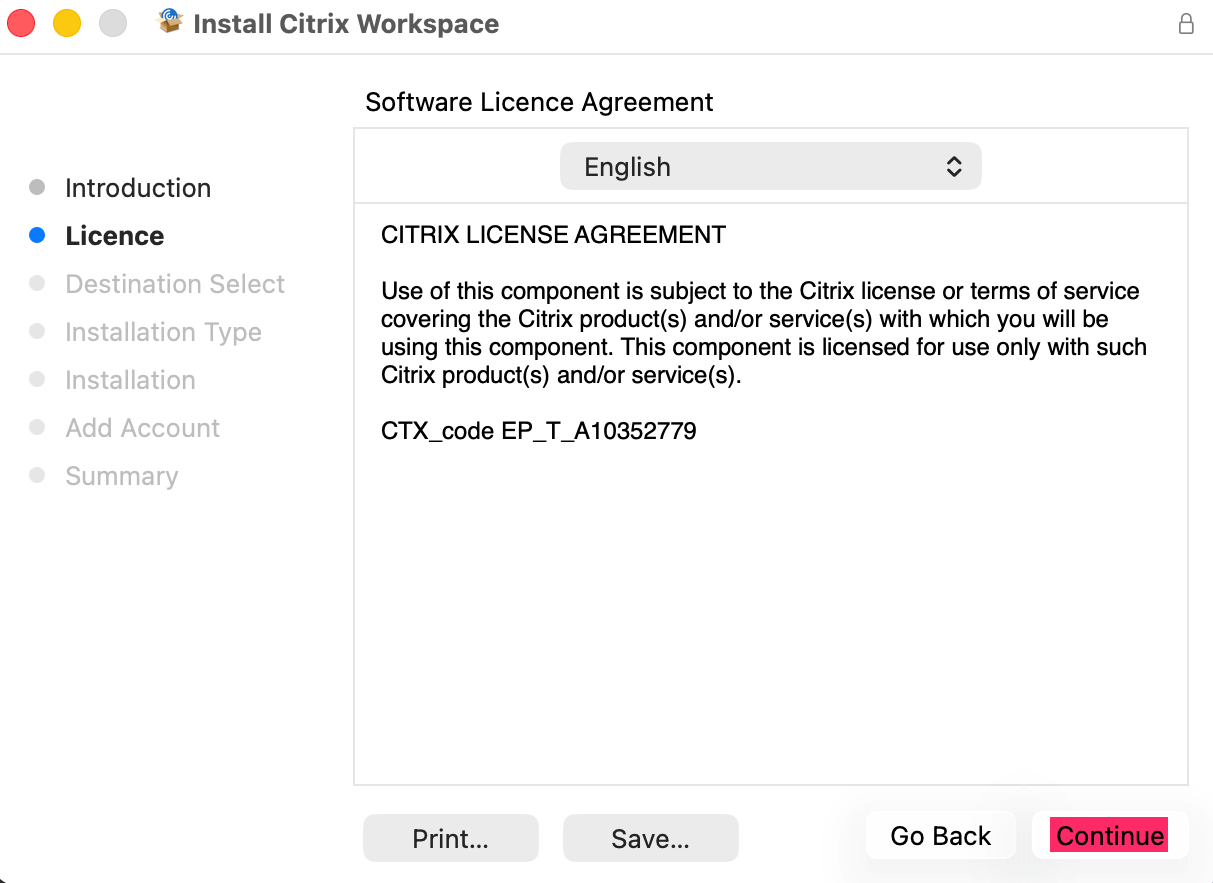
- Select Continue to accept License agreement and select Agree
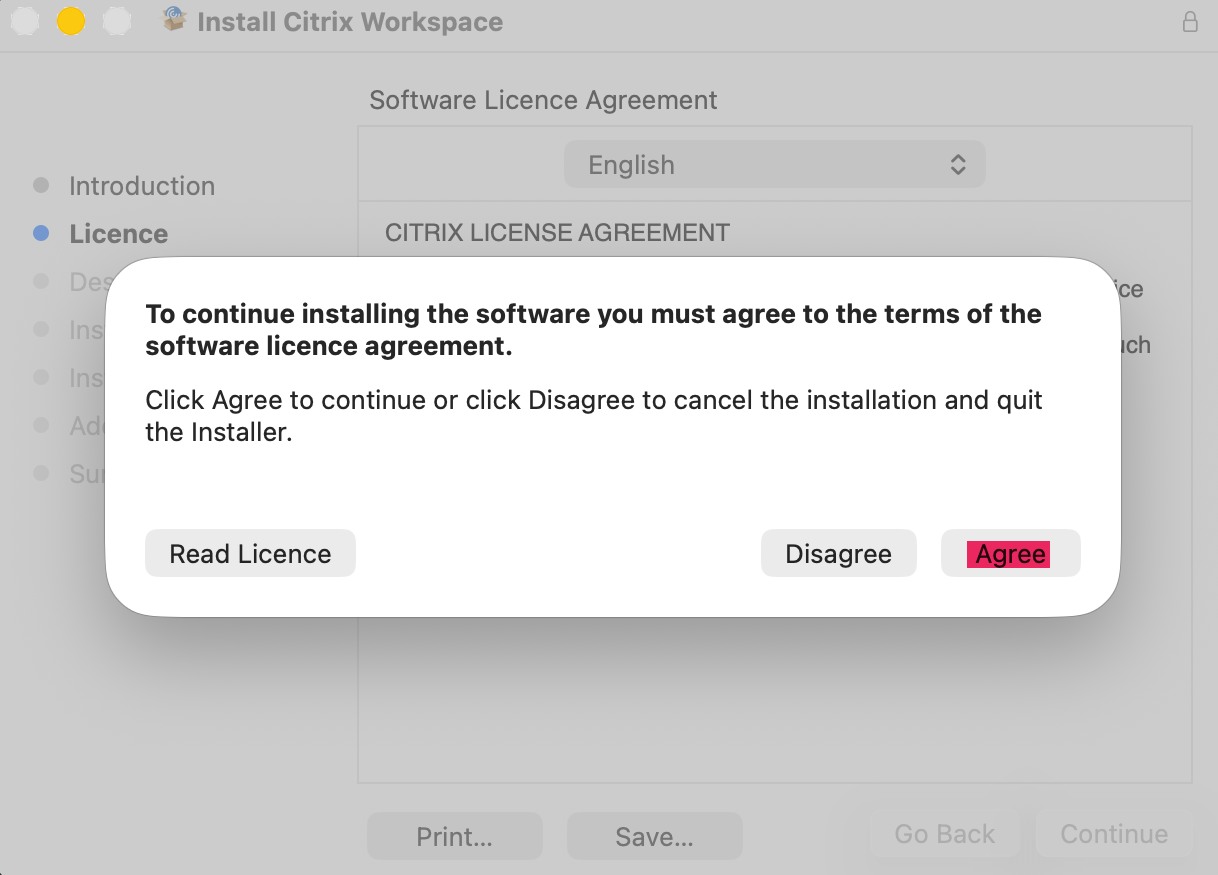
- Select Continue to install for all user on this computer.
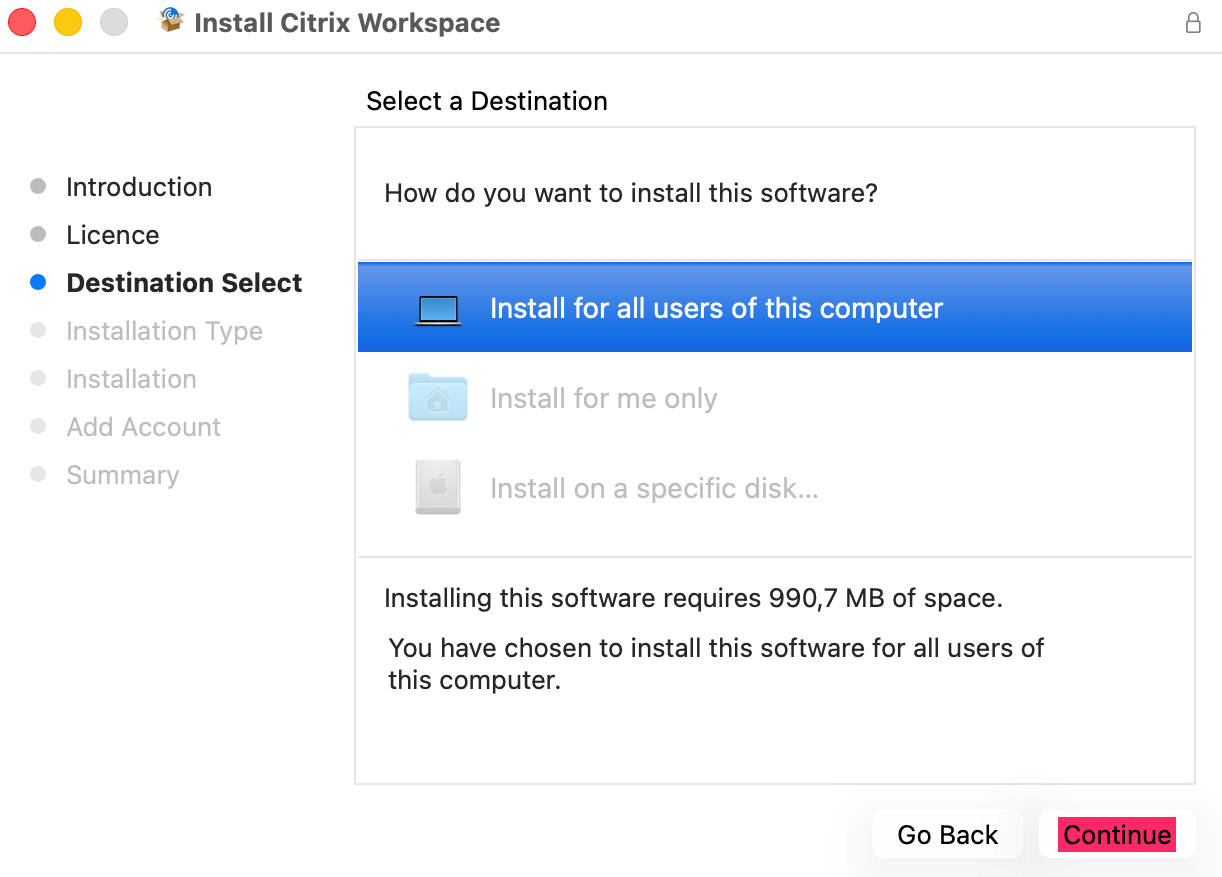
- Location of installation set by default, select Install to begin installation.
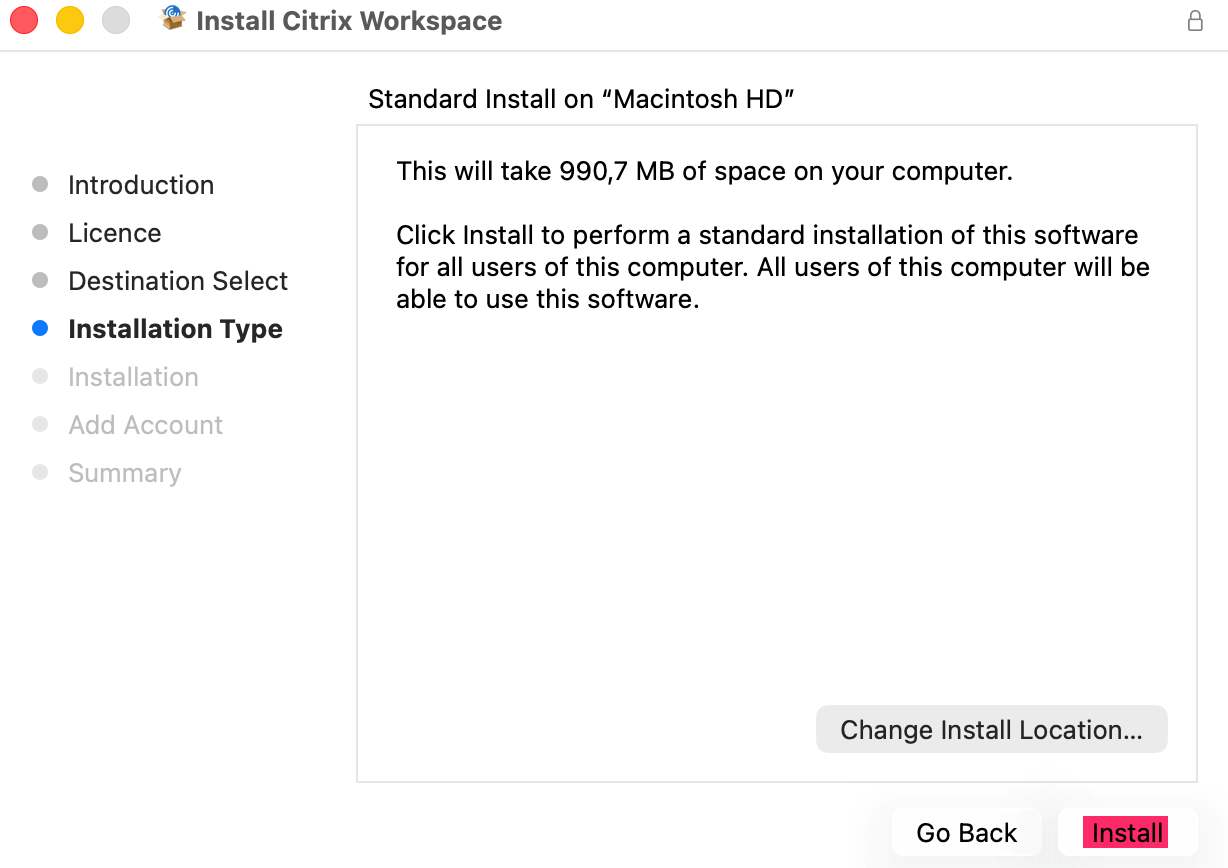
- Approve installation by using you Mac Password to continue installation.
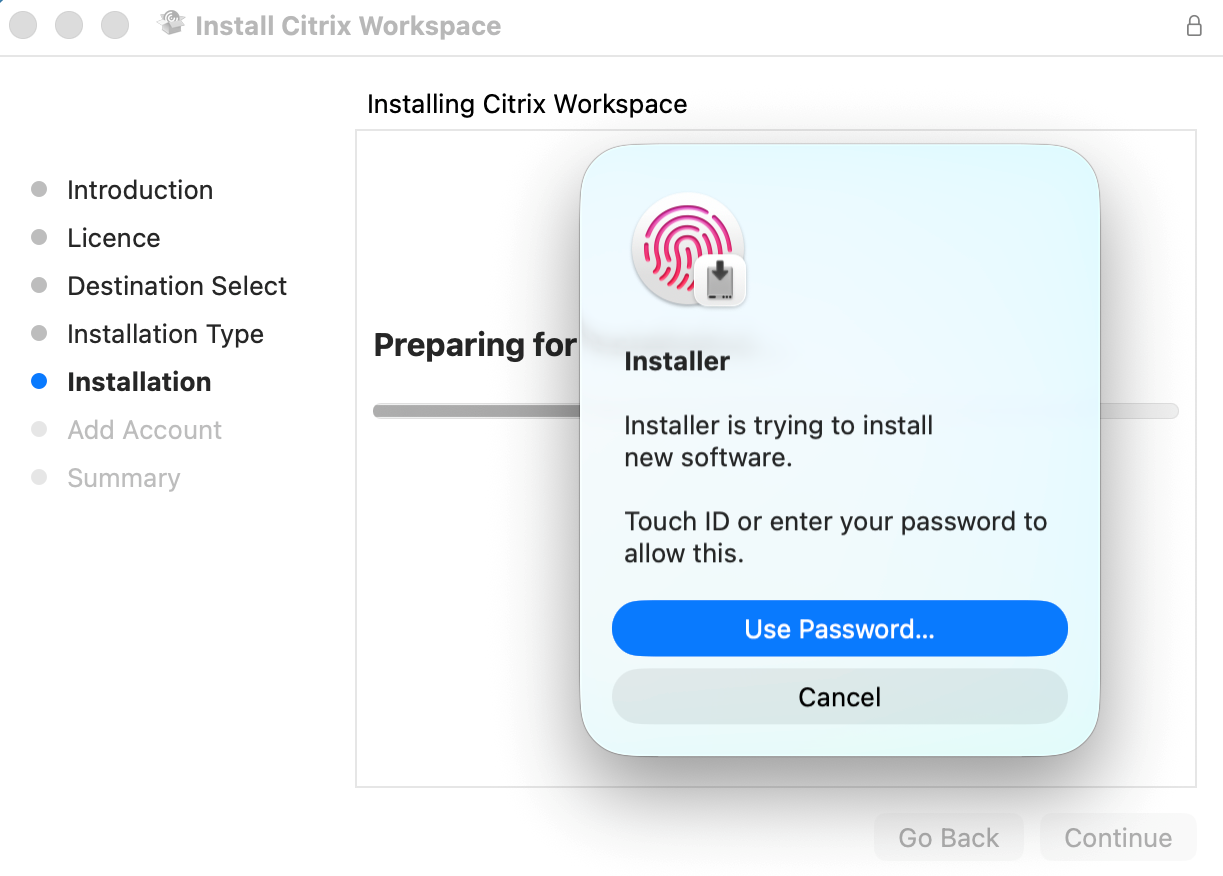
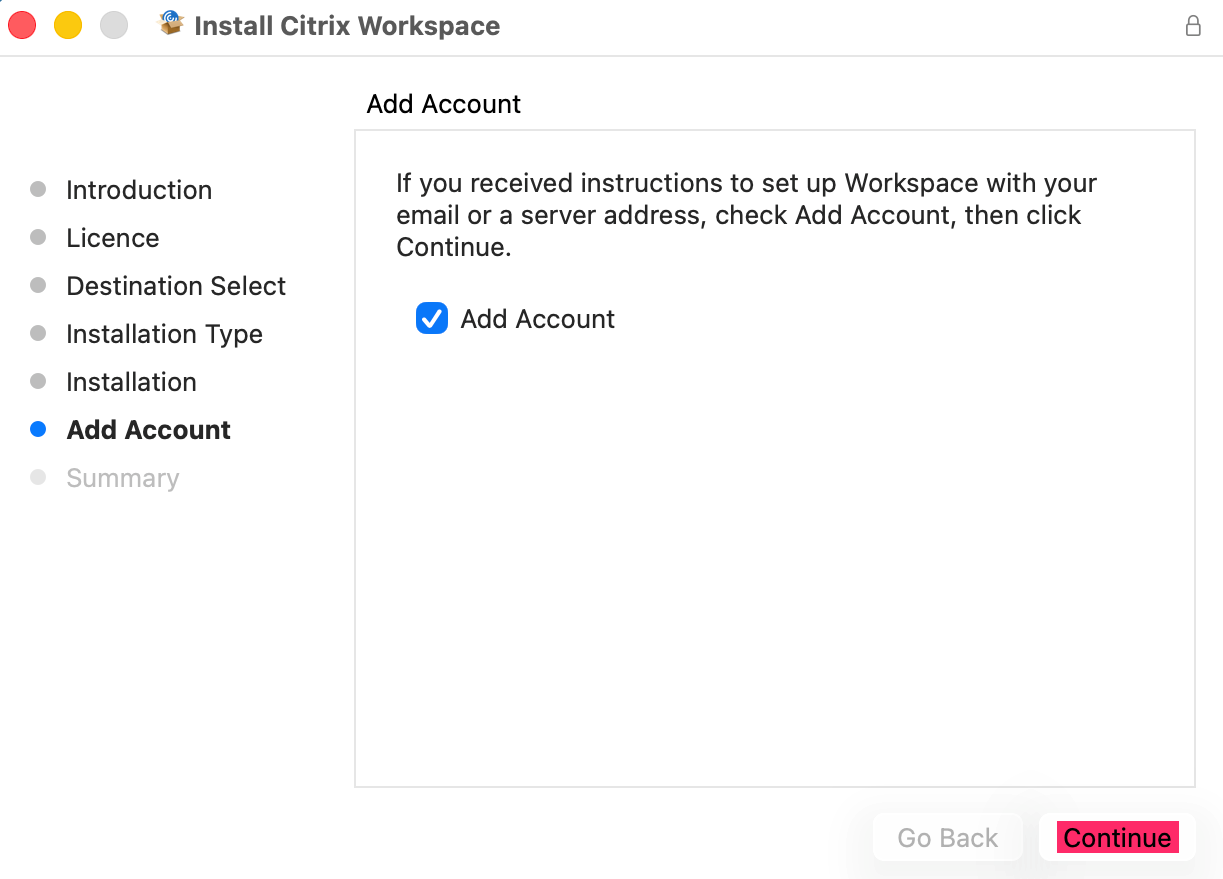
Now select Add Account and Continue. Installation will now continue and complete.
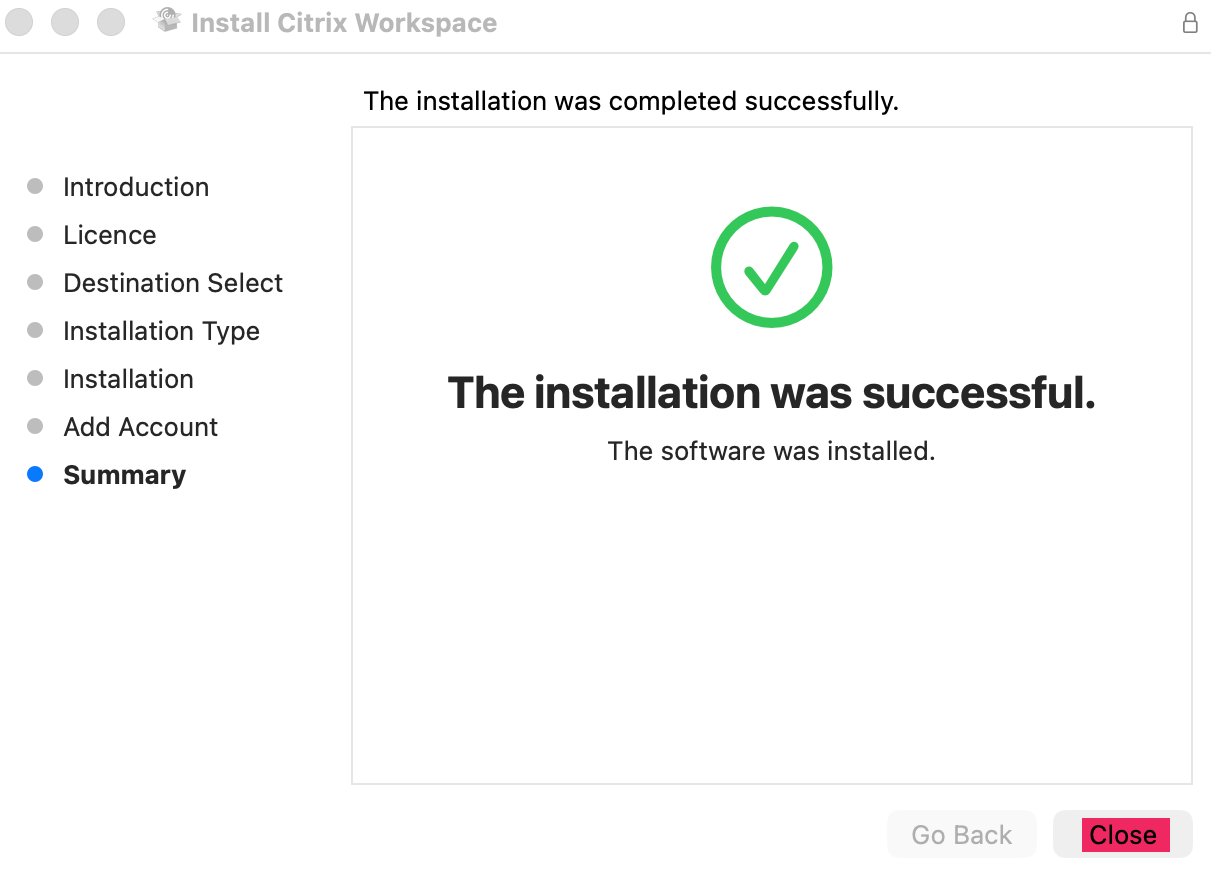
Once done select Close.
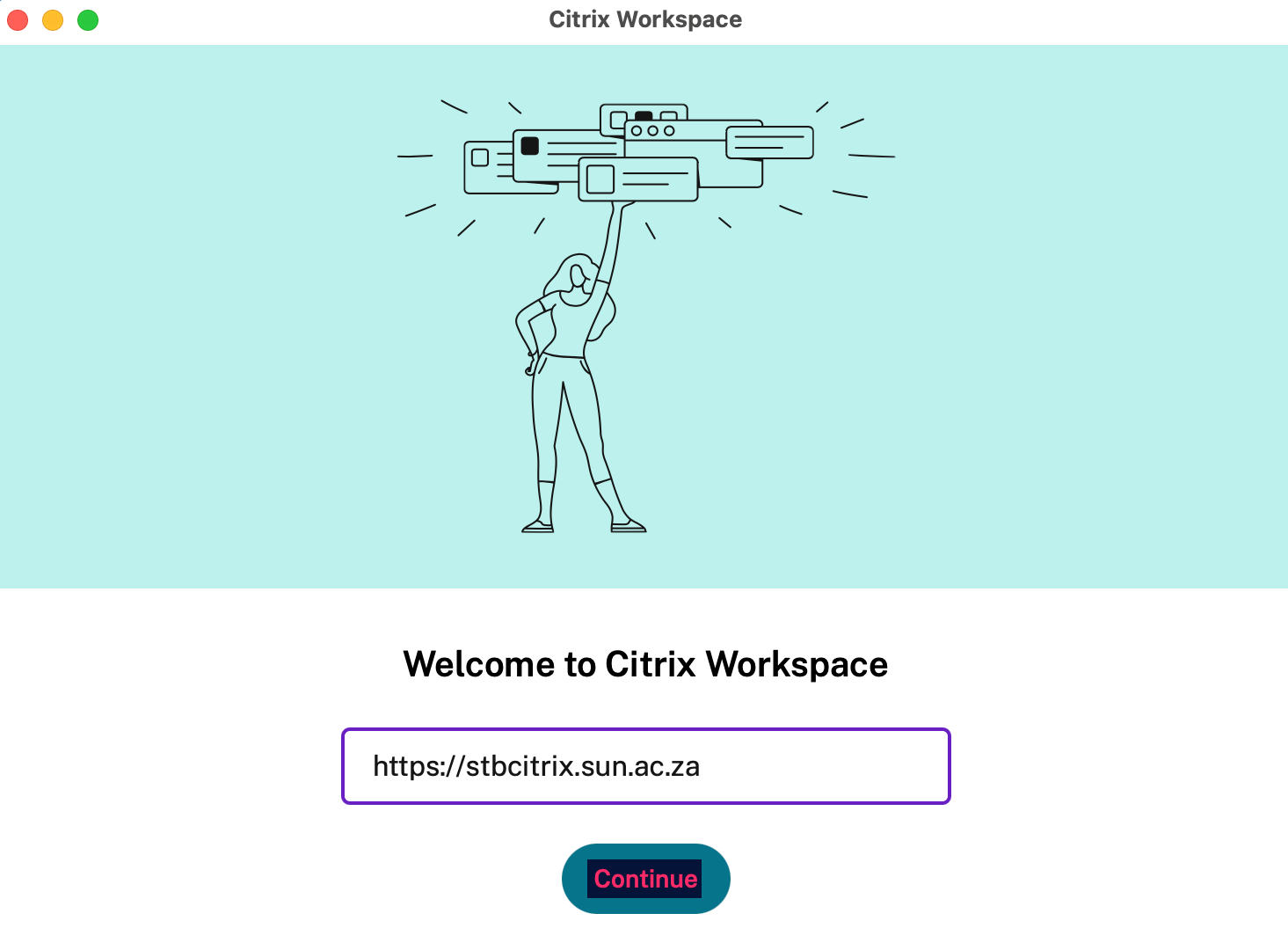
Welcome to Citrix Workspace screen will now popup.
Now enter to URL link (https://stbcitrix.sun.ac.za)in and select Continue.
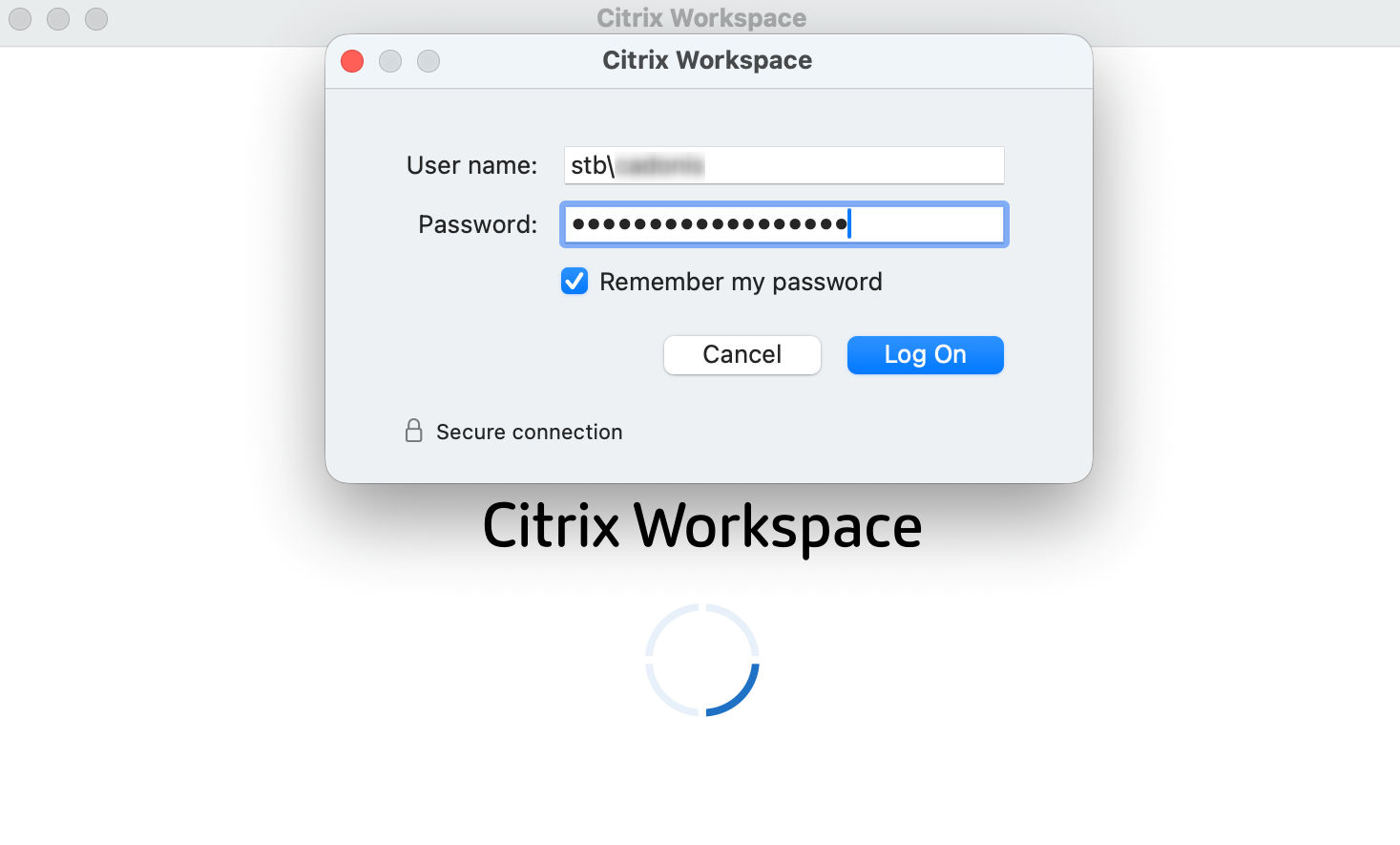
Enter you credentials as follows: stb\SU number or username and Password and select Sign In.
And then again to confirm and select Log On.You can select Remember my Password if choose to (optional).
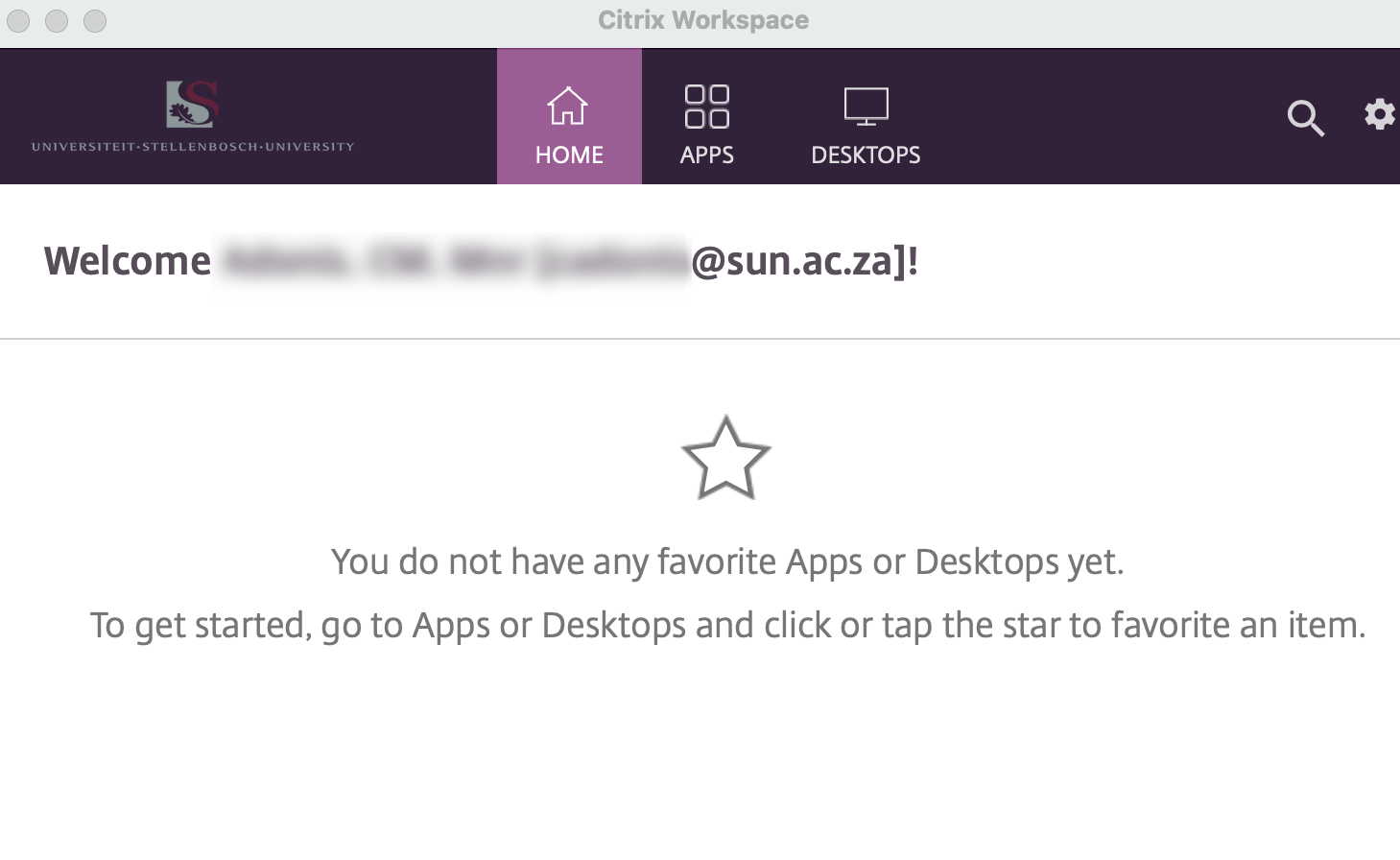
Citrix Workspace will now Launch with a Welcome Screen where you will see a menu with Home, Apps and Desktops.
Home Menu will be for your Favourite that you will use constantly.
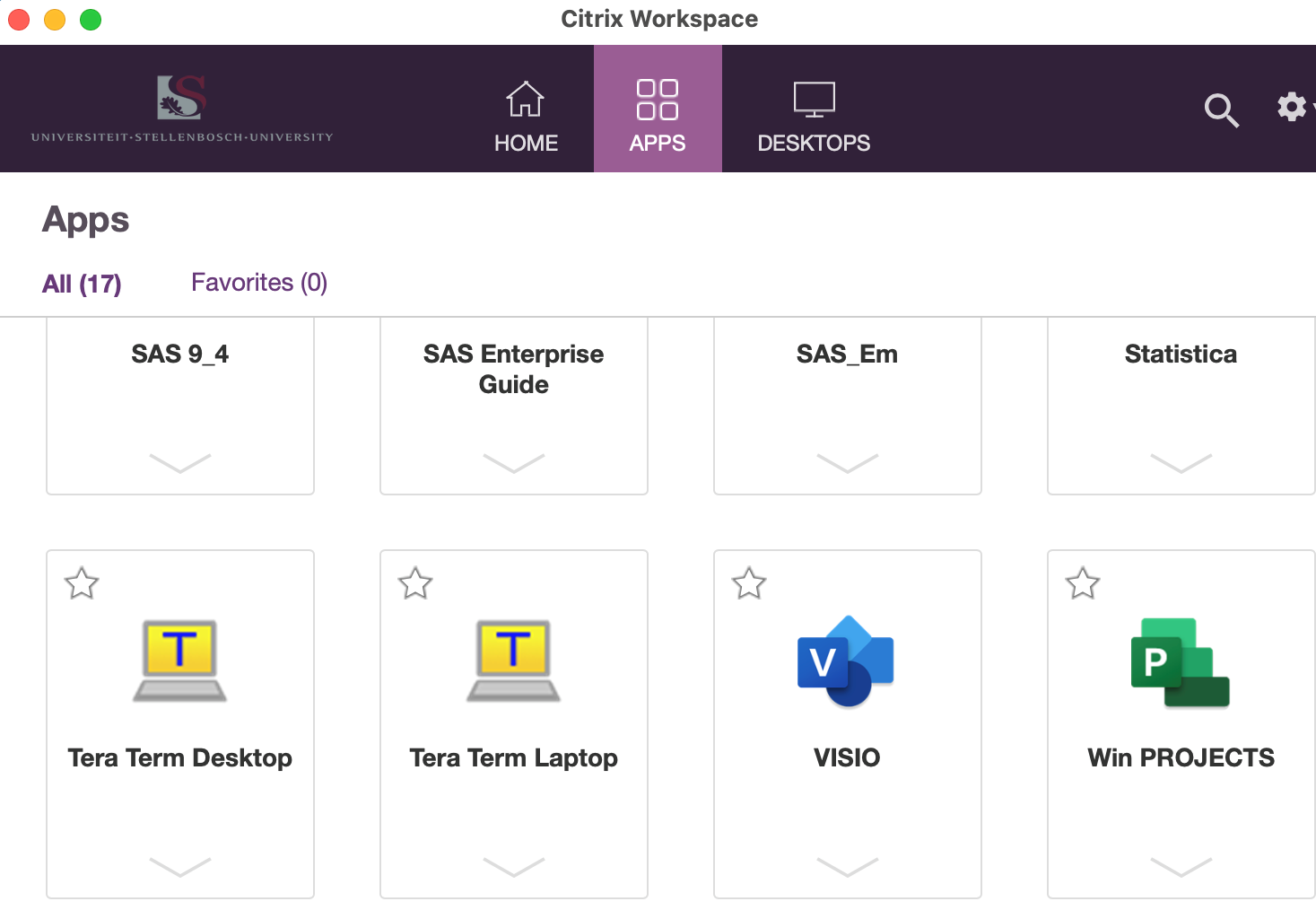
Apps Menu will be where all the Apps assigned to you is located.
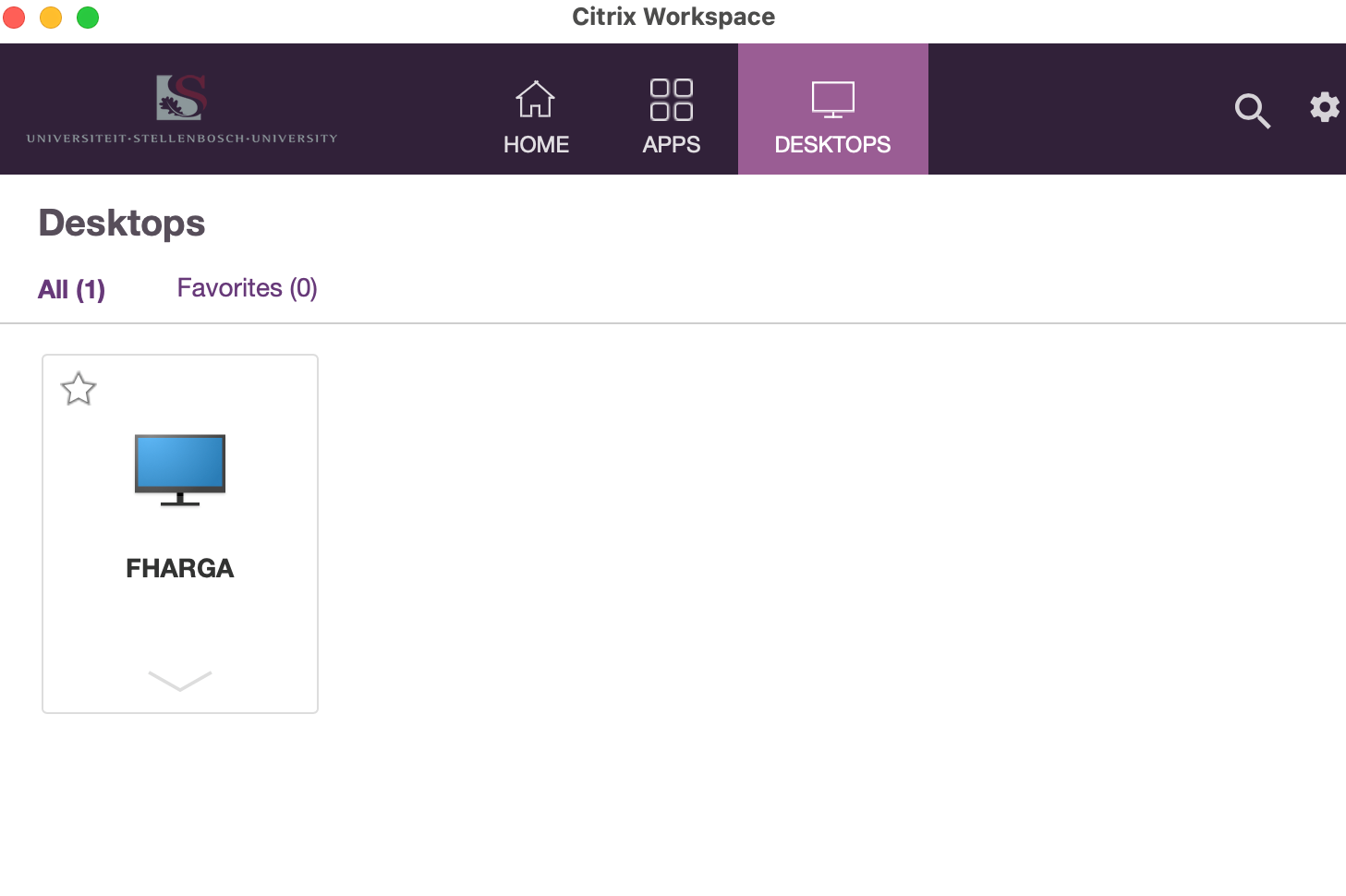
Desktops Menu is where you will find your Virtual PC.